
How to Create a Booth
-
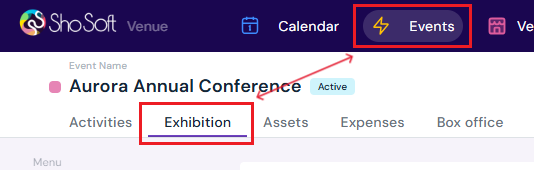
Access the event's Details page.
-
Navigate to the Exhibition section (if you do not see the Exhibitions tab follow the step outlined for adding exhibitions to an event).
-
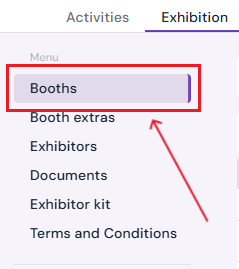
Click on Booths in the side menu.
-
-
Start Booth Creation
-
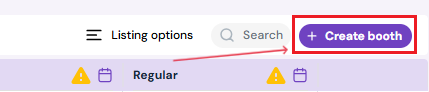
Click the purple Create Booth button.
-
A booth creation page will open.
-
-
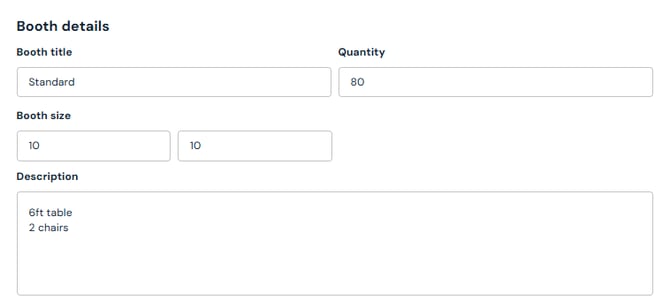
Enter Booth Details
-
Booth Title
-
Quantity of Booths Available
-
Optional: Booth size
-
Optional: Booth description
-
-
Optional: Add Inventory
-
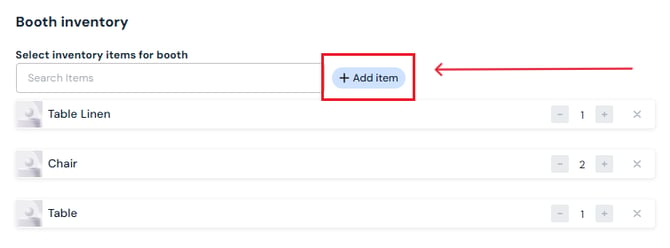
Click the blue Add Item button.
-
Select from inventory listed (only items listed under Inventory in the Venue profile will be shown. You can always add a new item to your permanent inventory). OR create a new item by clicking Create New (Inventory created here will not be saved under inventory in your Venue Profile.)
-
Adjust quantities and click the green Add button.
-
Click Add Items at the bottom of the box to finalize.
-
-
Self-Produced Events only: Optional Set Booth Pricing (Note: the invited Producer will be able to set pricing for booths for Collaborative events.)
-
Add Early Bird Price and/or Regular Price.
-
Select an Accounting Code (must be pre-created under the Accounting tab).
-
-
Self-Produced Events only: Configure Booth Settings (Note: the invited Producer will be able to manage storefront settings for Collaborative events.)
-
Check the Visible in Storefront box to allow exhibitors to purchase directly.
-
Optional: Upload a floor plan or other booth images.
-
Optional: Set Exhibitor Staff Pass limits (quantity, validity start/end dates).
-
Optional: Set Exhibitor Guest Pass limits (quantity, validity start/end dates).
-
-
Save Booth
-
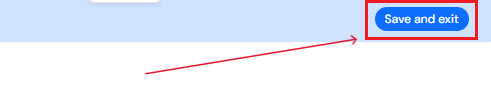
Scroll to the top of the page.
-
Click Save and Exit to finalize and create booth/s.
-
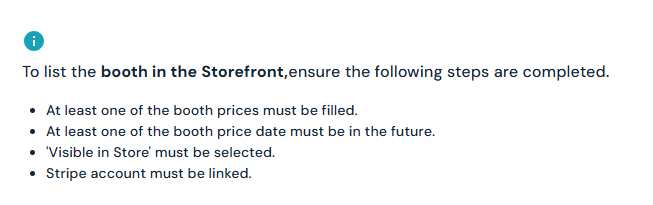
Note: To make sure the booths are available in storefront for purchase, please make sure:
-
- Set price dates on the main page (must be in the future)

- Set price dates on the main page (must be in the future)
How to Edit a Booth
-
Access the Booths section under Exhibition.
-
Hover over the booth you want to update.
-
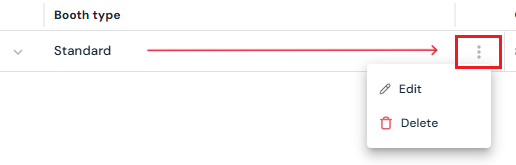
Click the three-dot menu next to the booth title.
-
Select Edit.
-
Update details such as title, quantity, inventory, pricing, or passes.
-
Click Save and Exit to confirm changes.
How to Delete a Booth
-
Access the Booths section under Exhibition.
-
Hover over the booth you want to remove.
-
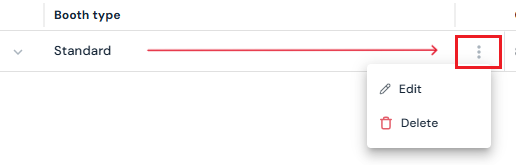
Click the three-dot menu next to the booth title.
-
Select Delete.
-
Confirm by clicking Yes, Delete in the pop-up.
Next Steps
Invite a producer to Sho-Soft for a collaborative event
Assign a booth to an exhibitor
Add/Edit/Delete booth extras for exhibitors
Request documents from exhibitors through Sho-Soft
Build exhibitor kits for all exhibitors to access
Build terms and conditions for exhibitors
Add/Edit/Delete representatives to serve as the primary point of contact for exhibitors