
How to Add Booth Extras
-
-
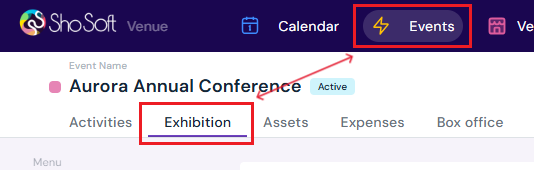
Navigate to the Exhibition section (if you do not see the Exhibitions tab follow the step outlined for adding exhibitions to an event).
-
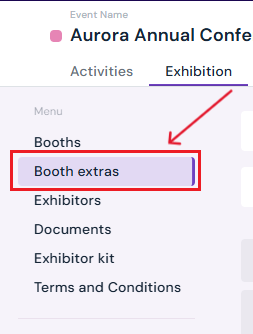
Click on Booths Extras in the side menu.
-
Collaborative Events Only: Decide who will sell booth extras (Venue OR Producer)
-
-
Toggle “Transfer booth extras sales to the producer” accordingly.

- If transferred to producer, skip the rest of booth extras setup. Producer is now responsible for managing sales of booth extras.
-
-
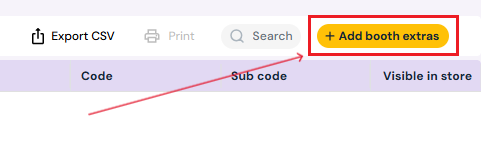
Click the yellow Add Booth Extras button.
-
Choose how to add the item:
-
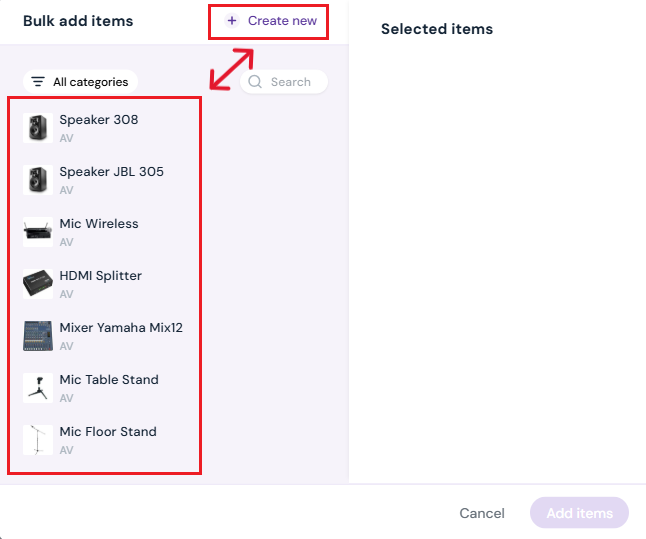
Select from the pre-populated inventory list (based on the Venue’s inventory profile. If you want to add a new permanent inventory item to the list see how to add inventory).
-
OR click Create New Item and enter:
-
Name of the item
-
Select a Category (must be added under the Inventory tab first, see how to add a category )
- Optional: Upload an image
-
Click the purple Create button. The new item will appear at the bottom of the list in the pop-up.
-
-
-
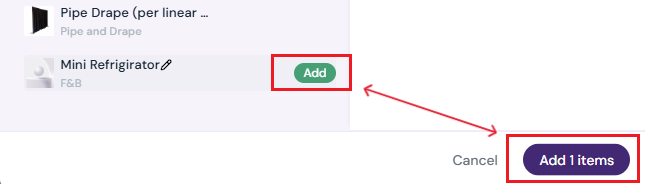
Click the green Add button next to the item you want to list for exhibitors to purchase/reserve.
-
Confirm by clicking the purple Add Item button at the bottom of the pop-up.
-
The item will appear in the Booth Extras table.
-
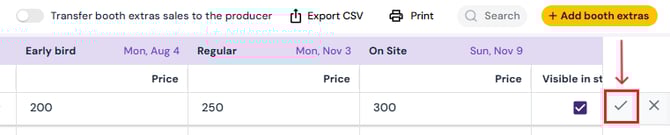
Double-click the entry to set pricing:
-
Early Bird (optional)
-
Regular (optional)
-
Onsite (optional)
-
-
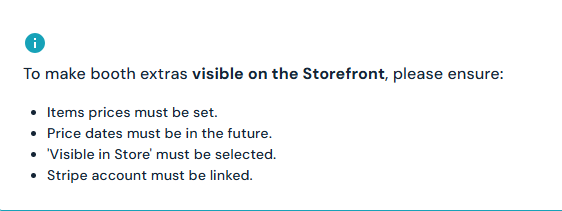
Check the Visible in Store box to make the item available on the storefront.
-
Click ✔ to save or ✖ to discard.
-
At the top of the table (purple bar), enter sale dates for Early Bird, Regular, and Onsite pricing. Note: Dates must be set in the future or the item will not appear in the storefront.

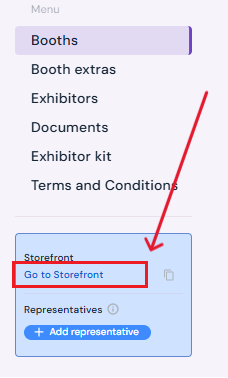
- Click on Go to Storefront in the blue box under the menu on the left hand side to check booth extras listings in the storefront.
How to Edit Booth Extras
-
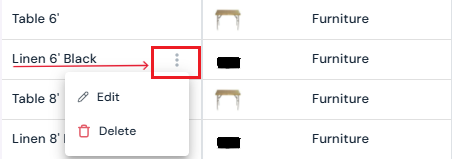
Hover over the booth extra you want to change.
-
Click the three-dot menu.
-
Select Edit.
-
Update details in the pop-up (name, category, or image).
-
Click Confirm to save changes.
How to Delete Booth Extras
-
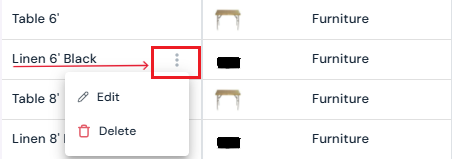
Hover over the booth extra you want to remove.
-
Click the three-dot menu.
-
Select Delete.
-
Confirm by clicking Yes, Delete in the pop-up.
Next Steps
Invite a producer to Sho-Soft for a collaborative event
Create/Edit/Delete an exhibitor booth
Assign a booth to an exhibitor
Request documents from exhibitors through Sho-Soft
Build exhibitor kits for all exhibitors to access
Build terms and conditions for exhibitors
Add/Edit/Delete representatives to serve as the primary point of contact for exhibitors