
Step 1 - Invite Exhibitor
Method 1: Invite from the Booths Page
-
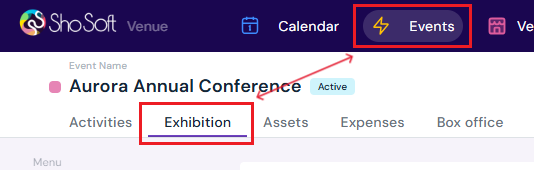
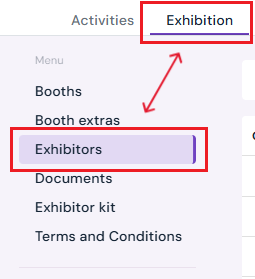
Navigate to the Exhibition tab (if you do not see the Exhibitions tab follow the step outlined for adding exhibitions to an event).
-
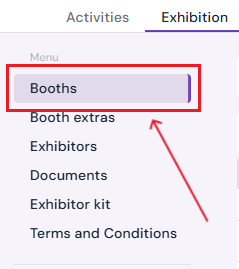
Click on Booths in the side menu.
-
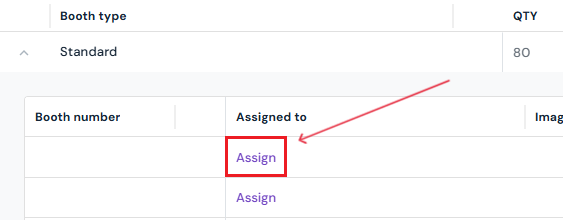
Find the booth type you want to assign and click the down arrow next to it.

-
Click Assign.
-
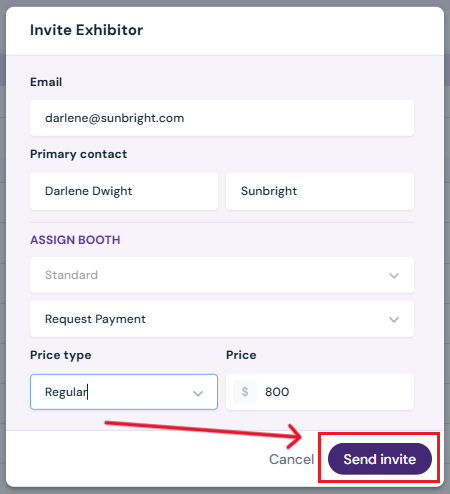
In the pop-up, enter exhibitor details:
-
Email
-
First and last name of the primary contact
-
Company name
-
-
Select booth payment type:
-
Request Payment - Choose Regular or Early Bird pricing (auto-populated from booth creation).
-
Complementary - Assign free of charge.
-
-
Click the purple Send Invite button.
- The exhibitor will also be listed under the Exhibitors tab.

-
The exhibitor will receive an email with access to the Storefront, where they can:
-
Purchase the booth (if payment required)
-
Buy booth extras
-
Access staff passes, guest passes, documents, exhibitor kit, and terms and conditions.
-
-
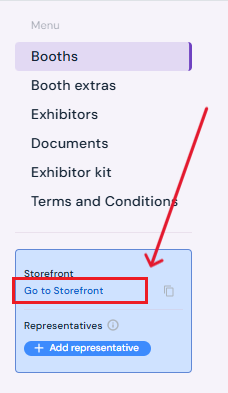
To preview the storefront, click Go to Storefront in the blue box on the left-hand side of the page.
Method 2: Invite from the Exhibitors Page
-
Click on Exhibitors under the Exhibition tab.
-
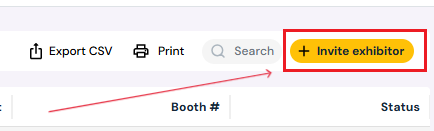
Click the yellow Invite Exhibitor button (top right).
-
Enter the exhibitor details (same as Method 1).
-
Send the invitation.
-
The exhibitor will appear on the Exhibitors page with a status of Pending Invite, which will update to Active once the invitation is accepted.

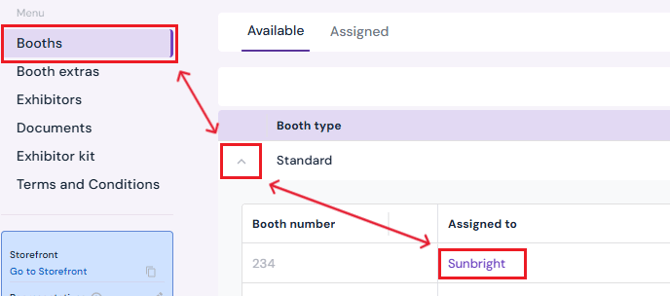
- The exhibitor will now be assigned to the booth type you selected on the invite pop-up. You can check the assignment and make any edits by going to the Booths tab and selecting the booth type.
Tip: Always double-check exhibitor email addresses before sending invites. This ensures the exhibitor gets immediate access to the storefront and avoids delays in booth confirmation.
Step 2: Edit and Manage Booths
-
To edit / add booth numbers and booth details:
-
Go to the Booths page.
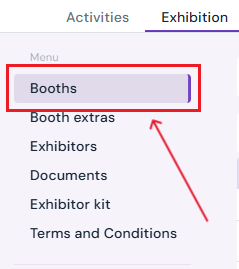
- Find the booth type you want to edit and click the down arrow next to it.
-
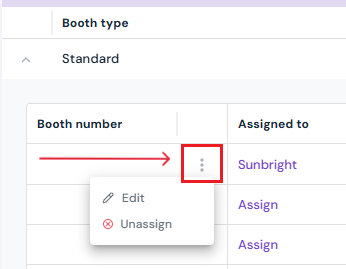
Names of the exhibitors will be pre-populated under the respective booth types after initial invitations are sent. Click the three-dot menu next to the booth/ exhibitor you want to edit.
-
Select Edit and enter details:
- Booth Number
- Optional: Upload images
- Optional: Upload floorplan
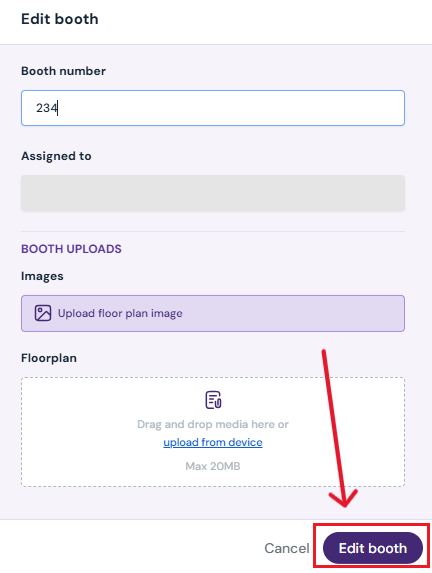
- Click the Edit Booth button to save changes.
-
The assigned booth number will now appear next to the exhibitor in the table.
-
-
To unassign: (Note: once a booth is unassigned, a new invite will have to be sent to the exhibitor before assigning a new booth. Only unassign a both if you need to change booth type/size for the exhibitor. If you are only changing booth numbers, please use the edit function).
-
Go to the Booths page.
-
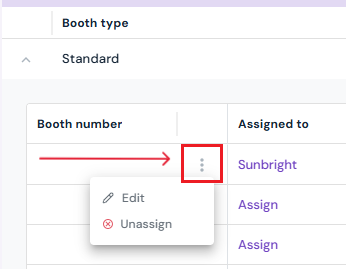
Click the three-dot menu next to the booth.
-
Select Unassign.
-
Confirm by clicking Yes, Unassign in the pop-up.
-
-
To view all assigned booths and payment status:
-
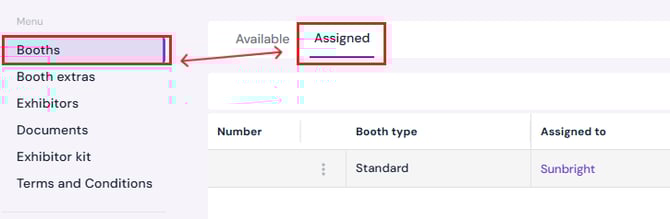
On the Booths page, click the Assigned tab(next to Available).
-
A chart will display all assigned booths, payment status, and date assigned.
-
Next Steps
Invite a producer to Sho-Soft for a collaborative event
Create/Edit/Delete an exhibitor booth
Add/Edit/Delete booth extras for exhibitors
Request documents from exhibitors through Sho-Soft
Build exhibitor kits for all exhibitors to access
Build terms and conditions for exhibitors
Add/Edit/Delete representatives to serve as the primary point of contact for exhibitors