
How to Add Representatives
-
-
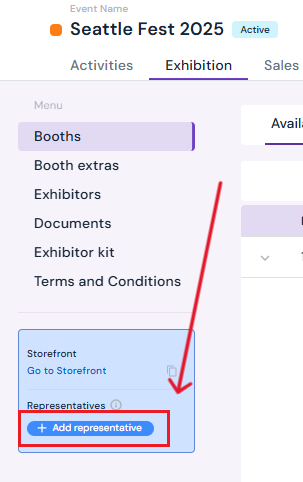
Click on the Exhibition tab.
-
Select the blue Add Representative button in the blue box under the menu on the left-hand side.
-
-
Enter Representative Details
-
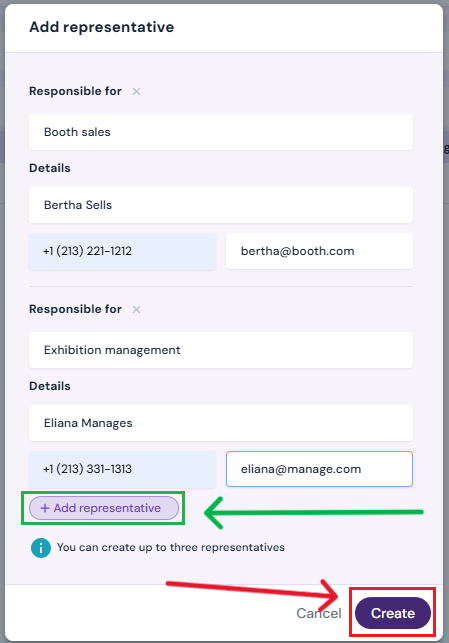
In the pop-up, select an option from the Responsible For dropdown:
-
Booth Sales
-
Booth Extras Sales
-
Exhibition Management
-
-
Enter the representative’s full name, phone number, and email address.
- Optional: Add another representative.
-
-
Click the purple Add Representative button.
-
Repeat steps above to add up to three representatives.
-
-
When finished, click Create.
-
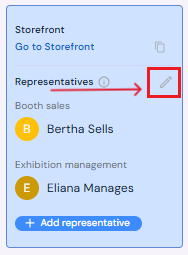
The representatives will now appear in the blue box on the Exhibition menu side.
-
How to Edit Representatives
-
On the Exhibition page, click the edit button next to the representatives in the blue box.
-
Make necessary changes in the pop-up (role, name, phone, or email).
-
Click Save to confirm.
How to Delete Representatives
-
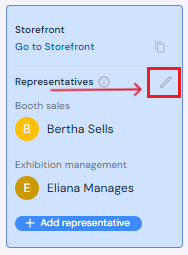
On the Exhibition page, click the edit button next to the representatives in the blue box.
-
In the pop-up:
-
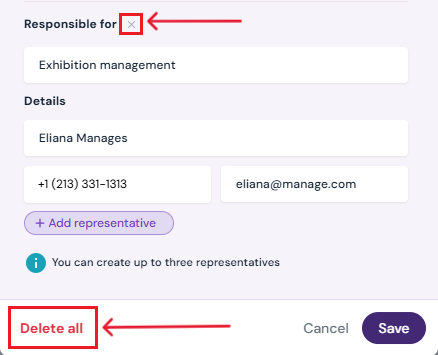
Click the X next to a representative’s entry to remove one representative.
-
Or click Delete All at the bottom to remove all representatives.
-
-
Click Save to confirm deletions.
Next Steps
Invite a producer to Sho-Soft for a collaborative event
Create/Edit/Delete an exhibitor booth
Assign a booth to an exhibitor
Add/Edit/Delete booth extras for exhibitors
Request documents from exhibitors through Sho-Soft
Build exhibitor kits for all exhibitors to access
Build terms and conditions for exhibitors