
Hold Events
Use this option to temporarily reserve dates for a client until details are confirmed.
Method 1 – Add Event Button
-
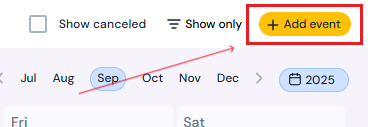
Click the yellow Add Event button (top right corner).
-
Fill in event details in the pop-up:
-
Self-Produced or Collaborative
- Note: it is important to pick the right option when choosing Self-produced or Collaborative as each option gives you access to different types of tools.
-
-
-
Exhibitors (Yes/No)
-
Event Name
-
Calendar Color
-
Optional: Upload an image
-
Optional: Add spaces, load-in/load-out dates, manager, or notes (click Show Options)

-
-
Click Book Event to save.
Method 2 – Calendar Dates
-
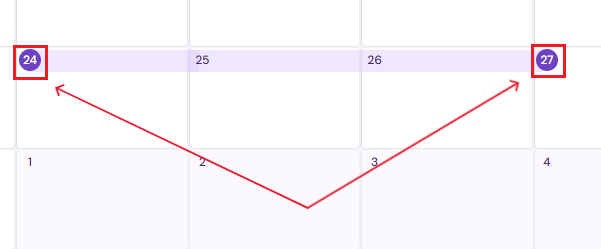
Click on the start date in the calendar, then select the end date.
-
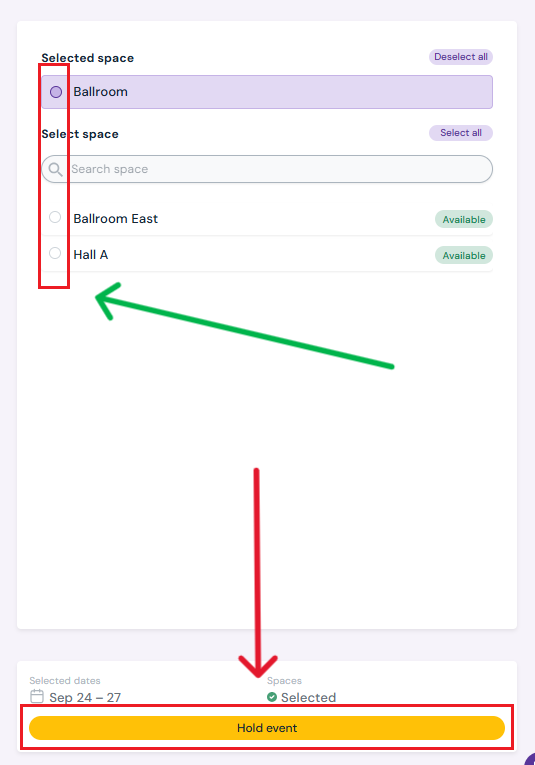
On the right-hand side, select a space(optional) and click Hold Event.
-
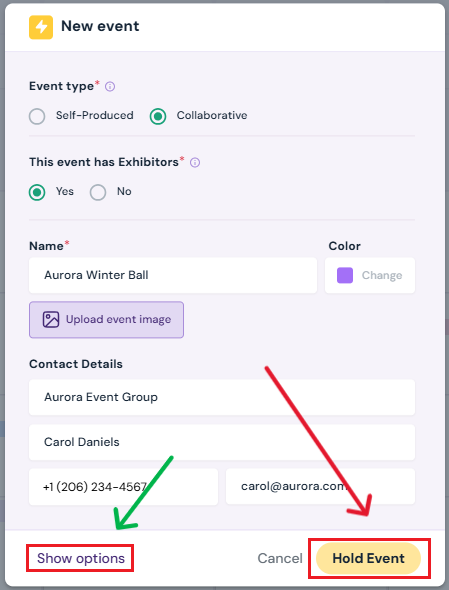
In the pop-up:
-
Choose Self-Produced or Collaborative
-
Note: it is important to pick the right option when choosing Self-produced or Collaborative as each option gives you access to different types of tools.
-
-
Select Yes/No for Exhibitors
-
Enter Event Name
-
Choose a calendar color
-
Optional: Upload an image
-
Optional: Click on the Show Options button to Add details (spaces, load-in/load-out, manager, notes)
-
-
Click Hold Event to save the tentative booking.
Next Steps
Learn about the calendar's Planner View and its functions
Finalize holds by Booking Events on the Calendar
Edit/Cancel/Delete Events at anytime
Assign Specific Spaces in your venue to an event
Add Load In/Out dates to your event
Add an Event Manager to the event