
1. Add Spaces When Creating a New Event
- Follow the steps to Add an Event to the calendar.
-
In the event creation pop-up, click Show Options.

-
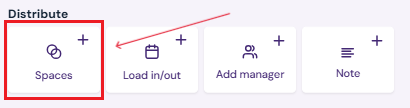
Under Distribute, click the Spaces button.
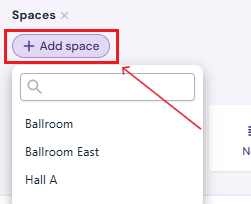
- Click the purple Add Space button and select a space from the drop down. (Multiple spaces can be assigned to the event. If you need to list a new space in your venue or you do not see the space you want in the drop down, please add a new space to your venue profile)
-
Optional: Choose sub-spaces if the event uses only part of a larger room (e.g., Ballroom East).
2. Add or Edit Spaces on an Existing Event
-
Click the event on the calendar.
-
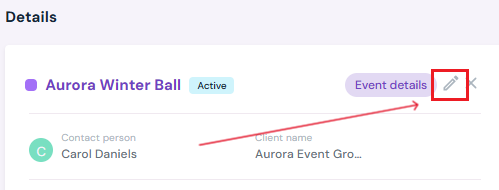
Click the Edit button.
-
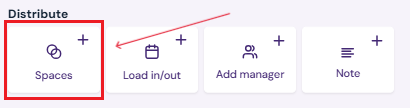
Under Distribute, click the Space button.
- Click the purple Add Space button and select a space from the drop down. (Multiple spaces can be assigned to the event. If you need to list a new space in your venue or you do not see the space you want in the drop down, please add a new space to your venue profile)
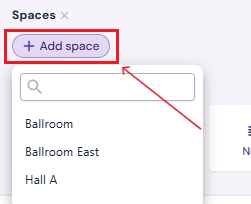
- Optional: Choose sub-spaces if the event uses only part of a larger room (e.g., Ballroom East).
3. Save the Event
-
Once changes are complete, click Save Event, Book Event, or Hold Event, depending on the event’s stage.

Next Steps
Learn about the calendar's Planner View and its functions
Create and Hold days for a new event on the calendar
Finalize holds by Booking Events on the Calendar
Edit/Cancel/Delete Events at anytime
Add Load In/Out days to any event
Add an Event Manager to the event