
Edit/Cancel Events
-
Select the event from the calendar.
-
Click Edit button on the details side (right hand side) of the page.
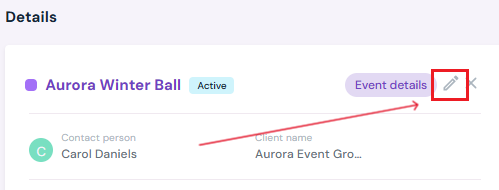
-
Make any changes on the pop-up and click Save Event save.

-
To cancel, click Cancel Event and confirm by clicking Yes, Cancel on the pop up.
- Note: Cancelling an event cannot be undone. You will have to delete the event and re-create it on the calendar if you accidentally cancel an event.
Delete Events
-
Select the event from the calendar.
-
Click Edit button on the details side (right hand side) of the page.
- Note: An event must be cancelled first in order to be deleted. ALL data associated with the event will be deleted and CANNOT be retrieved after you delete an event.
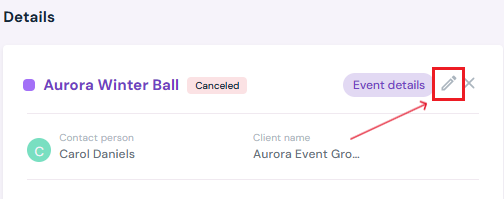
- Note: An event must be cancelled first in order to be deleted. ALL data associated with the event will be deleted and CANNOT be retrieved after you delete an event.
- On the pop-up, scroll to the bottom and click Delete Event.
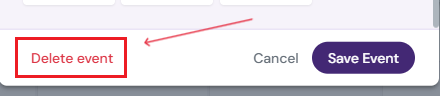
- Confirm by clicking Yes, Delete.
Next Steps
Learn about the calendar's Planner View and its functions
Create and Hold days for a new event on the calendar
Finalize holds by Booking Events on the Calendar
Add Load In/Out days to any event
Assign Specific Spaces in your venue to an event
Add an Event Manager to the event