
1. Add a Manager When Creating a New Event
- Follow the steps to Add an Event to the calendar.
-
In the event creation pop-up, click Show Options.

-
Under Distribute, click the Add Manager button.
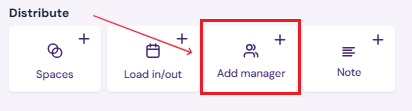
- Pick a Team Member from the drop down to assign them as a manger for the event.

- Note: Event Managers must be added as Team Members and need to be ACTIVE in Sho-Soft before they appear in this list.
2. Add or Edit a Manager on an Existing Event
-
Click the event on the calendar.
-
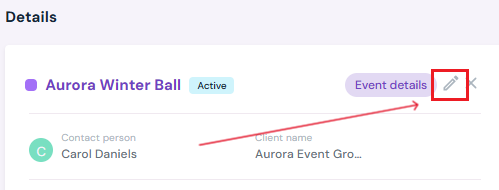
Click the Edit button.
-
Under Distribute, click the Add Manager button.
- Pick a Team Member from the drop down to assign them as a manger for the event.
- Note: Event Managers must be added as Team Members and need to be ACTIVE in Sho-Soft before they appear in this list.
3. Save the Event
-
Once changes are complete, click Save Event, Book Event, or Hold Event, depending on the event’s stage.

Next Steps
Learn about the calendar's Planner View and its functions
Create and Hold days for a new event on the calendar
Finalize holds by Booking Events on the Calendar
Edit/Cancel/Delete Events at anytime
Add Load In/Out days to any event
Assign Specific Spaces in your venue to an event