
How to Add Team Members
-
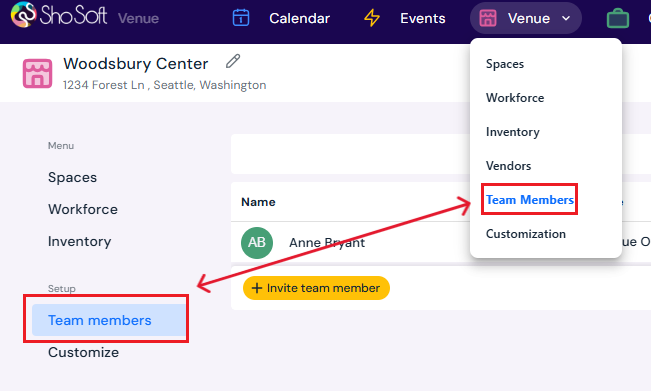
On the top toolbar, click Venue.
-
From the dropdown, select Team Members.
-
Your own information will be pre-populated on the page.
-
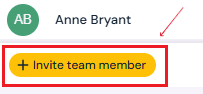
Click the yellow Invite Team Member button.
-
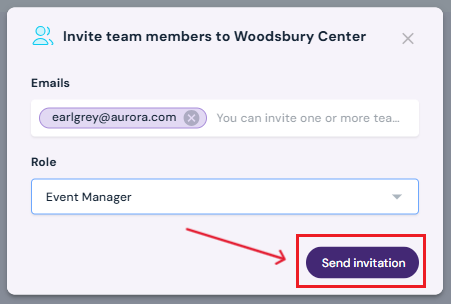
Enter one or more email addresses for your team members you'd like to invite.
-
Pick the role for the team member/s from the dropdown (Venue Owner, Event Manager, Accountant). You can only assign one role per invite group. To invite team members with different roles, please send separate invites.
-
Click Send Invitation.
Your team members will receive an email invitation with steps to create their accounts.
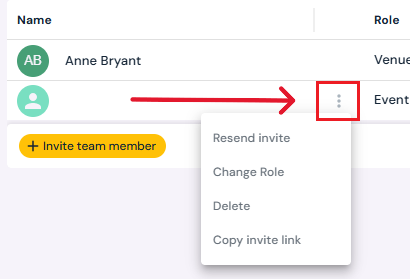
Tip: If a team member doesn’t receive their invite email, you can copy invite link directly from the three-dot menu and send it to them manually.
How to Edit a Team Member’s Role
-
On the Team Members page, hover over the member you want to update.
-
Click the three-dot menu next to their name.
-
Select Change Role.
-
Pick a new role from the dropdown in the pop-up.
-
Click Change Role to save your changes.
How to Delete a Team Member
-
On the Team Members page, hover over the member you want to remove.
-
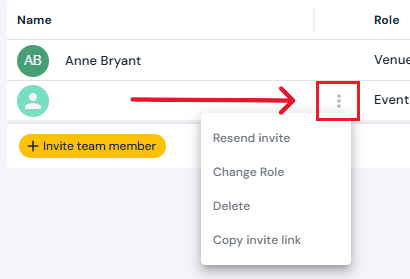
Click the three-dot menu next to their name.
-
Select the Delete option.
-
Confirm by clicking Yes, Delete in the pop-up.
Next Steps
Review team member roles and permissions in Sho-Soft to assign roles and grant permissions
Find out how invitations work with team member invitations and sign-up
See how to set up email notification configurations for your team members
See how to Add/Edit/Delete Vendors for venues
See how to Add/Edit/Delete Workforce for venues
See how to Add/Edit/Delete Inventory for venues
See how to Add/Edit/Delete Spaces for venues