
How to Configure Team Member Email Notifications
-
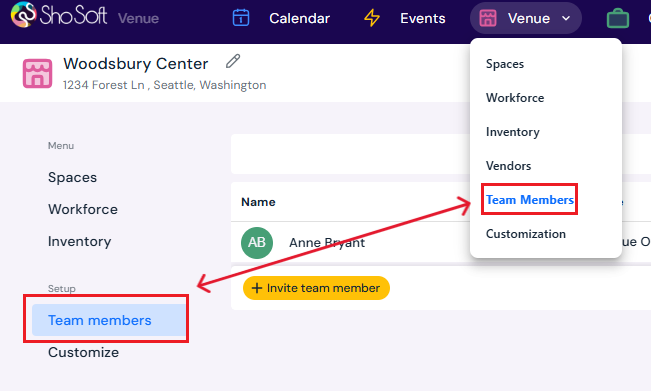
On the top toolbar, click Venue.
-
From the dropdown, select Team Members.
-
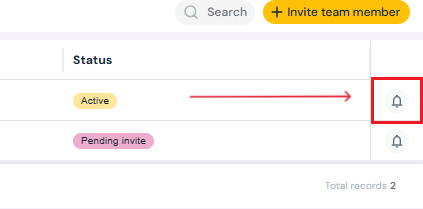
Click the on the bell icon on the right hand side of the row for any team member.
-
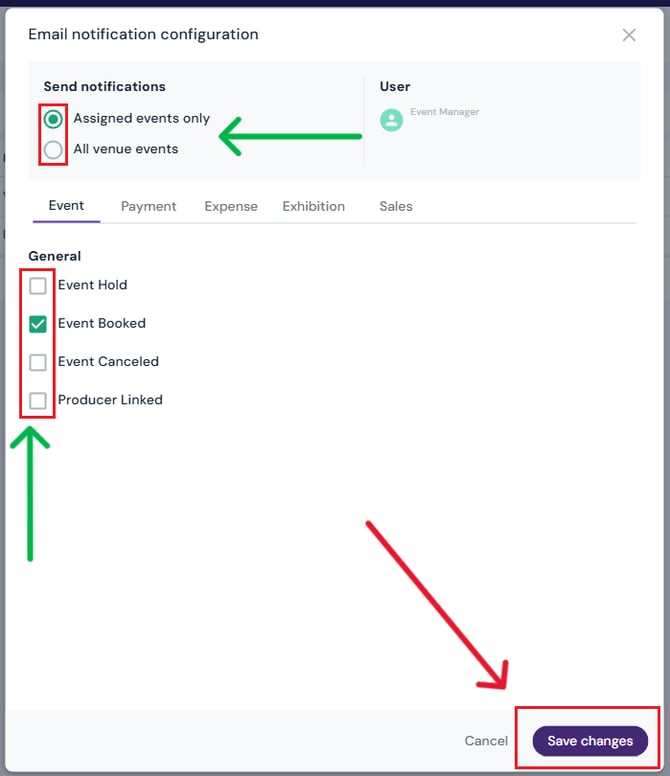
In the pop-up window, check or uncheck the boxes to adjust which notifications they will receive.
-
Examples: event bookings, payment notifications, quote approvals.
-
-
Click Save Changes to confirm.
What Happens Next
-
The team member will only receive the types of email notifications you enabled.
-
Their configuration can be updated at any time by repeating the steps above.
Tip: Use notification settings to avoid overloading staff with emails. For example, give accountants finance-related updates while event managers receive booking and scheduling alerts.
Next Steps
Add/Edit/Delete Team Members at any time to your Venue profile
Find out how invitations work with team member invitations and sign-up
Review team member roles and permissions in Sho-Soft to assign roles and grant permissions