
How to Access Workforce
-
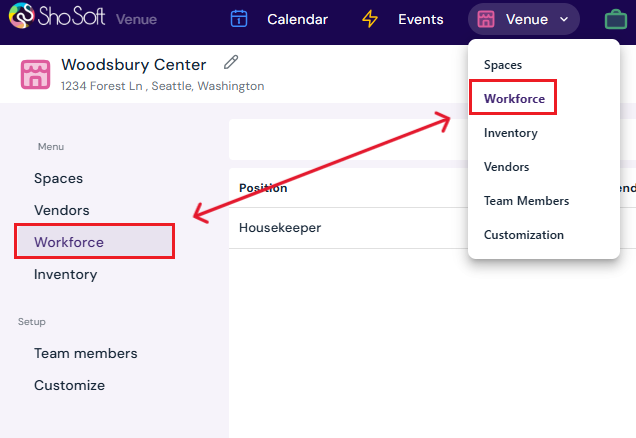
On the top toolbar, click the Venue button.
-
Select Workforce from the dropdown.
-
The Workforce page will open, showing any existing workforce entries in chart form.
Two Ways to Add Workforce
1. Through the Pop-Up Window
-
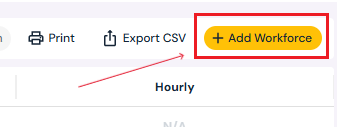
Click the yellow Add Workforce button (top right corner).
-
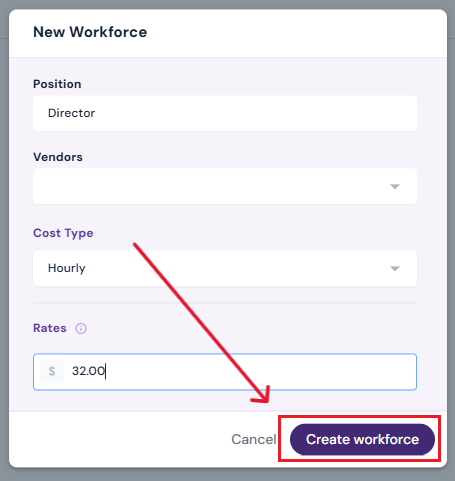
Enter details:
-
Click Create Workforce.
-
The new workforce entry will appear in the Workforce chart.
2. Directly in the Chart
-
At the bottom of the chart, click Add Workforce or use keyboard shortcut Shift + Enter.

-
A blank row will appear:
-
Enter the position (choose from dropdown or type in a new one and select Add a new position.
- Optional: assign a vendor (you can also add/edit vendors as needed)
-
Select Hourly or Daily for the cost type.
-
Enter rates (you can also customize the cost types as per the needs of your venue)
- Click the ✔ to save, or X to cancel.
-
How to Edit or Delete Workforce
-
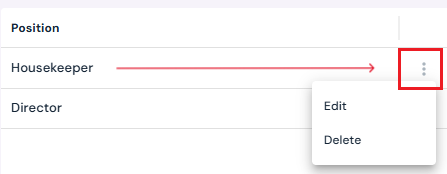
Hover over the workforce row you want to change.
-
Click the three-dot menu next to the position name.
-
Select Edit or Delete.
-
Edit a Workforce Entry:
-
Update details in the pop-up.
-
Click Save Changes to confirm.
-
Or click Delete to remove the entry entirely.
-
-
Delete a Workforce Entry:
-
Confirm by clicking Yes, Delete on the pop-up.
-
Tip: If edits or additions do not appear immediately, refresh the page to view updates.
Next Steps
See how to Add/Edit/Delete Vendors for venues
See how to Add/Edit/Delete Spaces for venues
See how to Add/Edit/Delete Inventory for venues
See how to Add/Edit/Delete Team Members for venues
See how to customize billing rates for workforce