
1. Open Customize
-
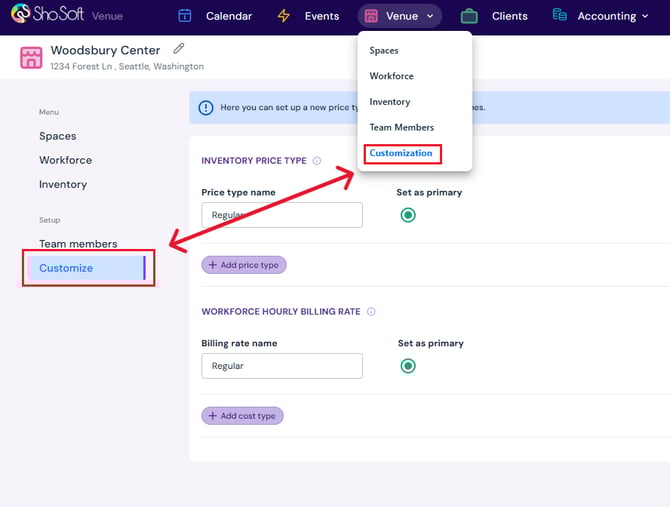
Under the Venue tab, click Customize from the left-hand side menu.
2. Add Inventory Price Type
-
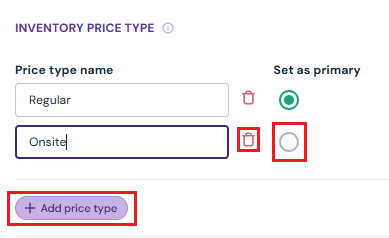
Under Inventory Price Type, click the purple Add Price Type button.
-
A new entry box will appear.
-
Enter the name of the new price type (e.g., Regular Rate, Weekend Rate, Onsite Rate).
-
Click the green circle next to a price type to set it as the primary price type.
-
To delete, click the red trash button next to the price type.
3. Add Workforce Billing Rate
-
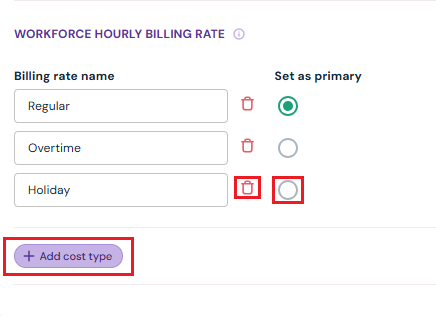
Under Workforce Hourly Billing Rate, click the purple Add Cost Type button.
-
Enter the name of the new cost type (e.g., Regular, Overtime, Holiday).
-
Optional: Click the green circle to set one as the primary cost type.
-
To delete, click the red trash button next to the cost type.
4. Save Changes
-
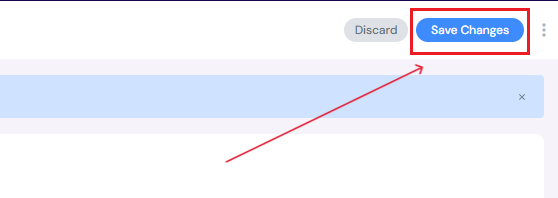
Click the blue Save Changes button at the top right hand corner of the page to save changes or the Discard button to discard.
Next Steps
Add/Edit/Delete Inventory with the new price type you have added
Add/Edit/Delete Workforce with the new cost type you have added