
1. Add Load In/Out Dates When Creating a New Event
-
Follow the steps to Add an Event to the calendar.
-
In the event creation pop-up, scroll down and click the Show Options button.

-
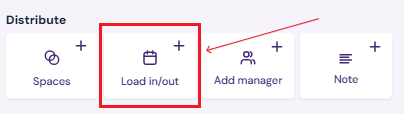
Under Distribute, click the Load In/Out button.

-
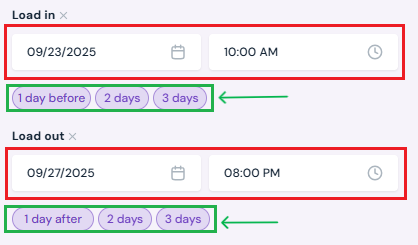
Enter the date and time for load-in and load-out.
-
Optional: Use shortcut buttons (1/2/3 days before or 1/2/3 days after) to quickly set standard load-in/load-out windows.
2. Add Load-In/Load-Out to an Existing Event
-
Click on the event in the calendar.
-
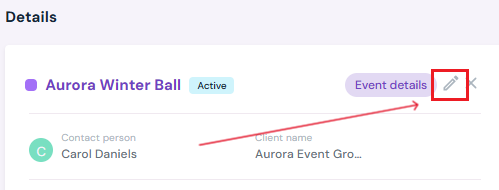
Select the Edit button.
-
Under Distribute, click the Load In/Out button.
-
Enter or adjust the date and time for load-in and load-out.

-
Optional: Use shortcut buttons (1/2/3 days before or 1/2/3 days after) to quickly set standard load-in/load-out windows.
3. Save the Event
-
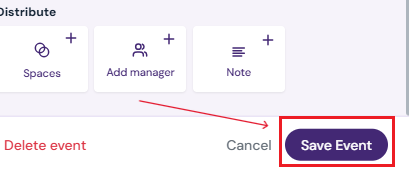
Once changes are complete, click Save Event, Book Event, or Hold Event, depending on the event’s stage.
- Load in/out days will appear with striped shading on the events calendar.

Next Steps
Learn about the calendar's Planner View and its functions
See how to create a hold for an event before booking
Finalize holds by Booking Events on the Calendar
Edit/Cancel/Delete Events at anytime
Assign Specific Spaces in your venue to an event