
How to Invite your Team
- Click the Start button next to Invite Your Team on the setup list pop-up (bottom right corner).
- On the Team Members page, your name and information will already be pre-populated.
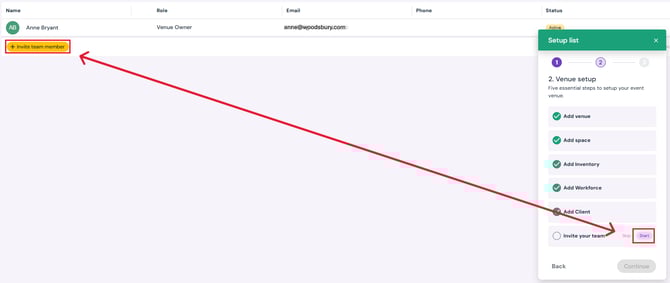
- Click the yellow Invite Team Member button on the page.
- Enter one or more email addresses for all the team members you want to invite.
- Select the Role for the team member/s you are inviting from the drop down.
- Venue Owner
- Event Manager
- Accountant
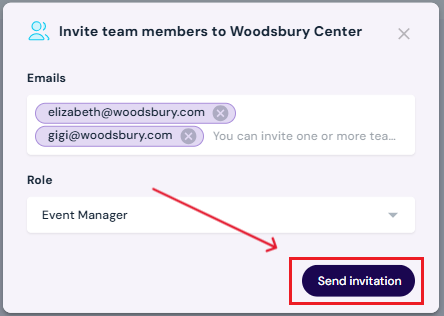
- Click Send Invitation.
- Your team members will receive an email invitation and follow the steps to set up their individual accounts.
Next Steps
Review team member roles and permissions in Sho-Soft to assign roles and grant permissions appropriately
Find out how invitations work with team member invitations and sign-up
Add/edit/delete team members anytime on the team members page
See how to set up email notification configurations for your team members
Begin event detup by following the event setup list