
Adding Daily Activities
-
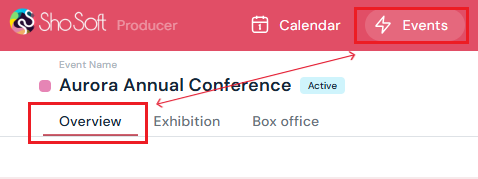
Access the Event Details page for your event.
-
Navigate to the Overview tab.
-
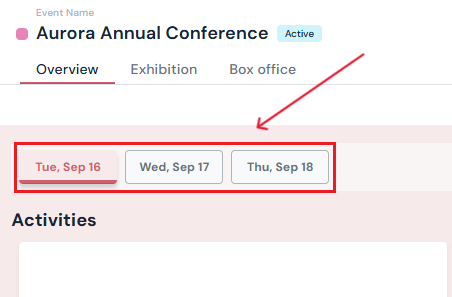
Select the date you want to add an activity to.
-
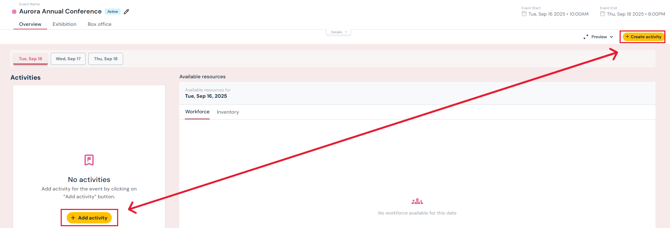
Add an activity using one of two options:
-
Left side: Click the yellow Add Activity button under the daily activity list.
-
Right side: Click the yellow Create Activity button at the top.
-
-
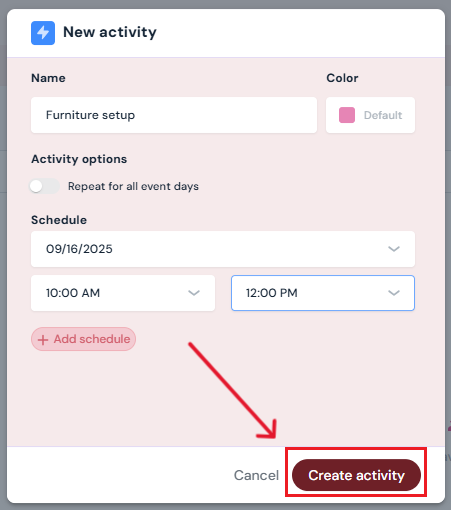
In the pop-up window, enter details:
-
Activity Name
-
Repeat for all event days - toggle if the activity occurs each day.
-
Date and Time - confirm or adjust start and end times.
-
Add multiple schedules - click the purple Add Schedule button for repeating sessions.
-
-
Click Create Activity.
-
The activity will now display under the date and in the main Activities list.
Editing Daily Activities
-
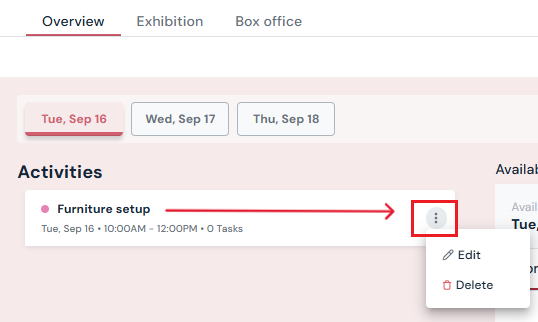
Click the three-dot menu next to the name of the activity you want to edit.
-
Select Edit.
-
Update the activity details (name, time, space, schedule, etc.) in the pop-up.
-
Click Save Activity.
Deleting Daily Activities
-
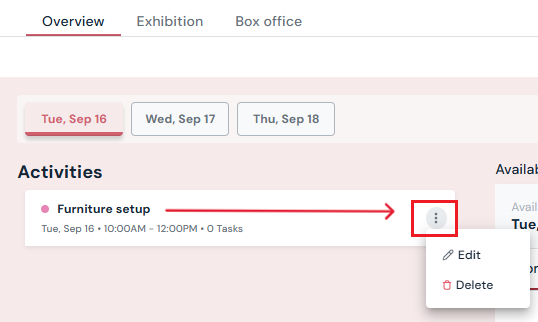
Click the three-dot menu next to the name of the activity you want to edit.
-
Select Delete.
-
Confirm by clicking Yes, Delete in the pop-up.
Next Steps
See how to edit an event
See how to access the events details page for any event
Add/Edit/Delete Tasks to your daily activities
See how to add/edit/delete workforce per event day for an event
See how to add/edit/delete inventory per event day for an event
Add exhibition to an event for managing exhibitors