
Adding a Task
-
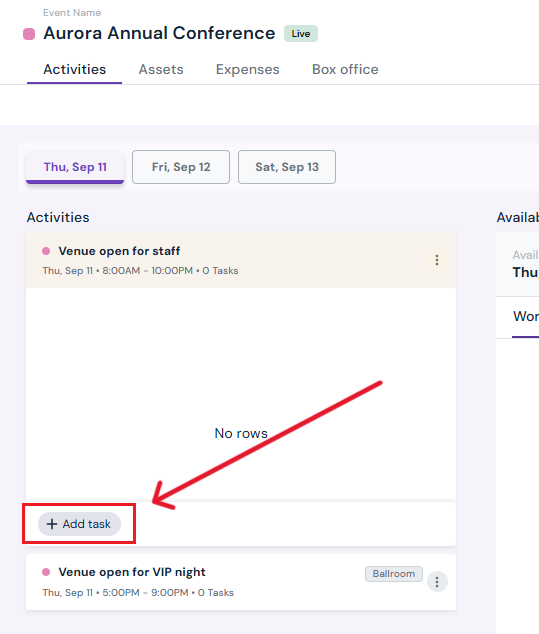
Go to the Activities tab within the event.
-
Click on the date of the activity.
-
Select the activity you want to add a task to.
-
Click the grey Add Task button.
-
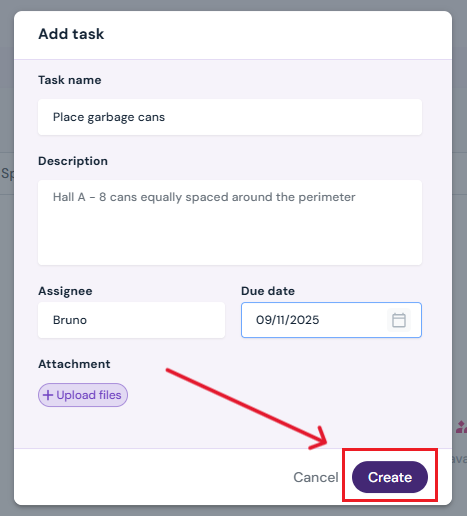
In the pop-up window, enter details:
-
Task Name
-
Optional: Description
-
Assign Staff Member
-
Due Date
- Optional: Click the purple Upload files button to add any files (flow-charts, images, permission slips, etc.) for reference
-
-
Click Create.
-
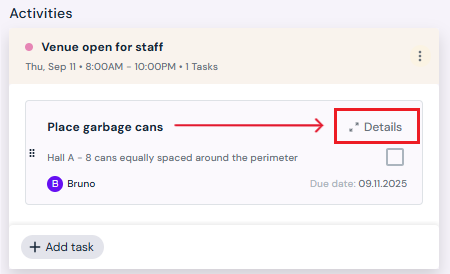
The new task will appear under the activity.
Editing a Task
-
Click the Details button on the task.
-
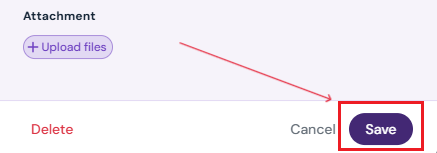
Make any necessary changes.
-
Click Save to confirm updates.
Deleting a Task
-
Click the Details button on the task.
-
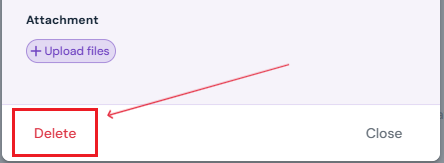
Click Delete.
-
Confirm by clicking Yes, Delete in the pop-up.
Next Steps
Invite a producer to Sho-Soft for a collaborative event
See how to add/edit/delete daily activities for an event
See how to add/edit/delete workforce per day for an event
See how to add/edit/delete inventory per day for an event
See how to add/edit/delete spaces per day for an event
Add exhibition to an event for managing exhibitors