
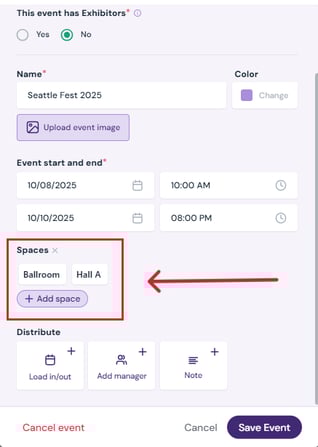
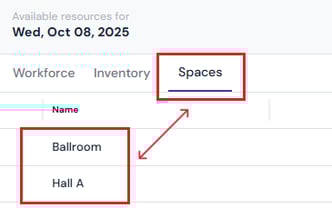
Note: Spaces added during event creation will be automatically pre-populated for all days under the Activities tab. To see how to add a space during event creation, refer to Assign Spaces to an Event.
How to Add a Space
-
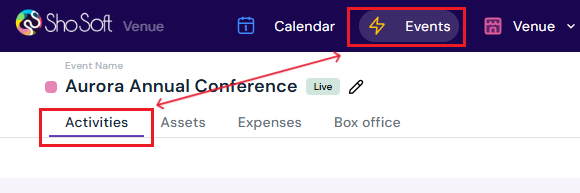
Go to the Activities tab within the event.
-
Click the day of the event where you want to add a space.

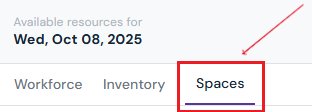
- Select the Spaces tab.
-
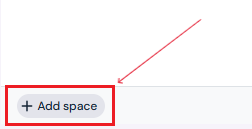
Click the Add Space button at the bottom of the box.
-
Enter details:
-
Select a Space from the dropdown. (Only spaces that have already been added to your Venue Profile can be assigned to an event. See how you can create a new space if needed).
-
Optional: Add any notes.
-
Optional: Add start and end times for use of the space.
-
Choose the default invoice/quote code for billing or click Create New to generate a separate quote or invoice.

-
-
Click the ✔ to complete the entry or ✖ to discard.
How to Edit a Space
-
Double-click the row you want to update.
-
Make the necessary changes.
-
Click the ✔ to update the entry or ✖ to discard.
How to Delete a Space
-
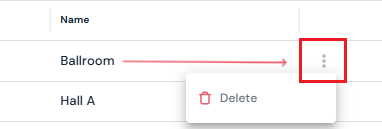
Hover over the space entry you want to remove.
-
Click the three-dot menu.
-
Select Delete.
-
Confirm by clicking Yes, Delete in the pop-up.
Tip: Repeat space setup for each day of the event as needed. Always assign appropriate quote or invoice codes to ensure accurate billing for your organization.
Next Steps
Invite a producer to Sho-Soft for a collaborative event
See how to add/edit/delete daily activities for an event
Add/Edit/Delete Tasks to your daily activities
See how to add/edit/delete workforce per day for an event
See how to add/edit/delete inventory per day for an event
Add exhibition to an event for managing exhibitors