
Note: This feature is available only for self-produced events. In collaborative events where the producer is invited by a venue, the producer will not have access to this feature.
How to Add Workforce
-
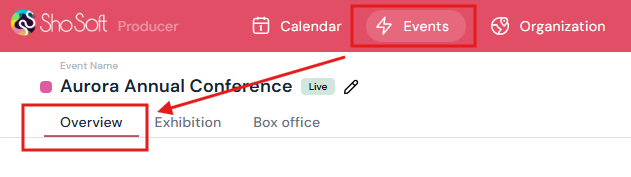
Go to the Overview tab within the event.
-
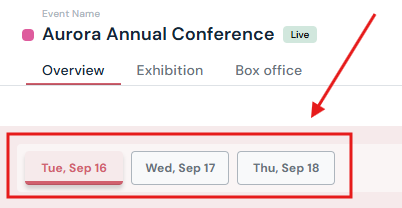
Click the day of the event where you want to add workforce.
-
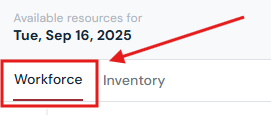
Select the Workforce tab.
-
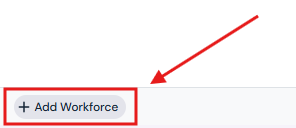
Click the Add Workforce button at the bottom of the box.
-
Enter details:
-
Job Role: Choose from the dropdown (all permanent workforce entries under the organization tab will show up in the drop down - see how to add/edit/delete workforce to you venue profile) or type in a new position and select Add New Position (if the workforce entry will be used for this particular event only).
-
Optional: Fill in staff name.
-
Quantity: Add the number of staff needed.
-
Clock-In/Clock-Out Times: Set work hours.

-
-
Click the ✔ to complete the entry or ✖ to discard.
How to Edit Workforce
-
Double-click the row you want to update.
-
Make the necessary changes.
- Click the ✔ to update the entry or ✖ to discard.
How to Ungroup Workforce
If multiple staff were entered as a group:
-
Hover over the group entry.
-
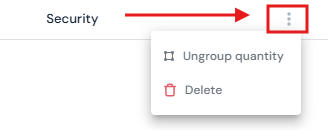
Click the three-dot menu.
-
Select Ungroup.
-
The entry will split into individual workforce rows (one per staff member).
How to Delete Workforce
-
Hover over the entry you want to remove.
-
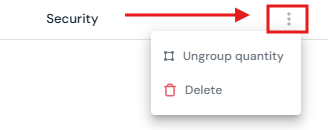
Click the three-dot menu.
-
Select Delete.
-
Confirm by clicking Yes, Delete in the pop-up.
Tip: Repeat workforce setup for each day of the event as needed.
Next Steps
See how to add/edit/delete daily activities to each event
Add/Edit/Delete Tasks to your daily activities
See how to add/edit/delete inventory per event day for an event
Add exhibition to an event for managing exhibitors