
How to Add Inventory
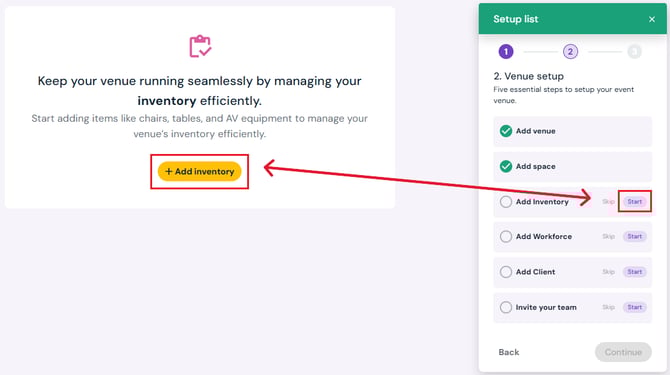
- Click the Start button next to Add Inventory on the setup list pop-up (bottom right corner).
- Click the yellow Add Inventory button on the page.
- Enter Item Details:
- Name (e.g., Chair, Projector, Food Item, etc.)
- Optional: Upload image
- Pick an initial category (e.g., Furniture, AV, Food) from the dropdown – you can change or add more categories later.
- Pick an Inventory Type: Reusable or Consumable
- Optional: Add notes in the Description field
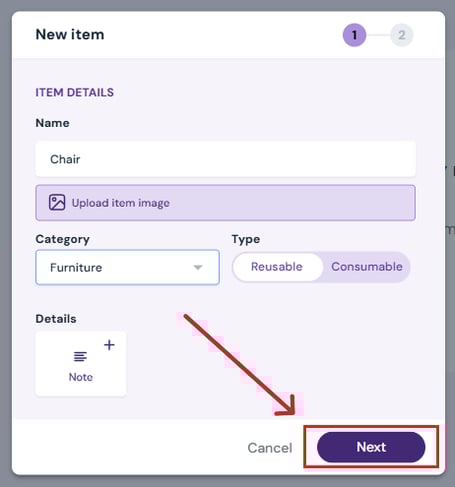
- Click Next.
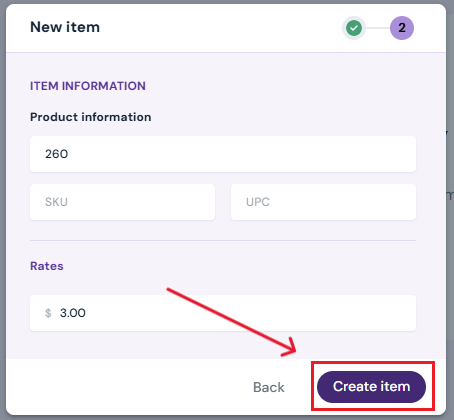
- Enter Product Information:
- Create Inventory
- Click Create to save your details.
Next Steps
- Continue Venue Setup with Add Workforce.
- Add/edit/delete inventory on the Inventory Page.
- Add/edit/delete categories on the Inventory Page.