
How to Create a Quote
-
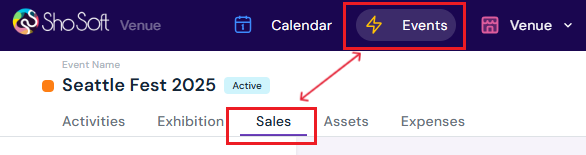
Go to the Sales tab (if you do not see the Sales tab follow the step outlined in enabling sales for an event - this feature is available for collaborative events only).
-
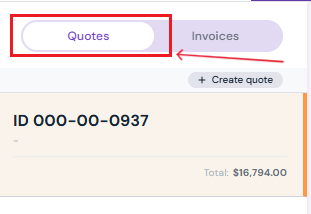
Toggle to Quotes on the side menu.
-
An initial quote will already be generated automatically based on the information added under the Activities tab.
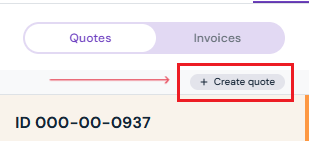
- You can also create a new quote by clicking the grey Create Quote button.
-
-
Add Items to the Quote
You can add charges either from the Quote Viewer or through the Activities tab:-
To add via the Activities tab, see related articles:
-
To add directly from the Quote Viewer, scroll to the section you want to update (Spaces, Inventory, Workforce, or Ad Hoc).
-
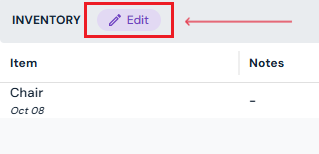
Click the purple Edit button next to the section title.
-
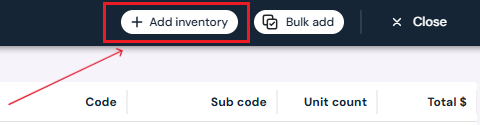
Then click the white Add button at the top and fill out the information in the pop-up.
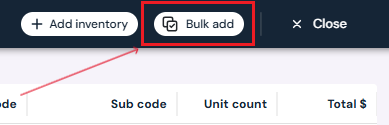
- To bulk add items (instead of adding them one by one), click the white Bulk Add button and use the pop-up to add multiple entries at once.
-
Click the purple Add button at the bottom of the pop-up to save.
The new item will now appear on the main Quote Viewer page.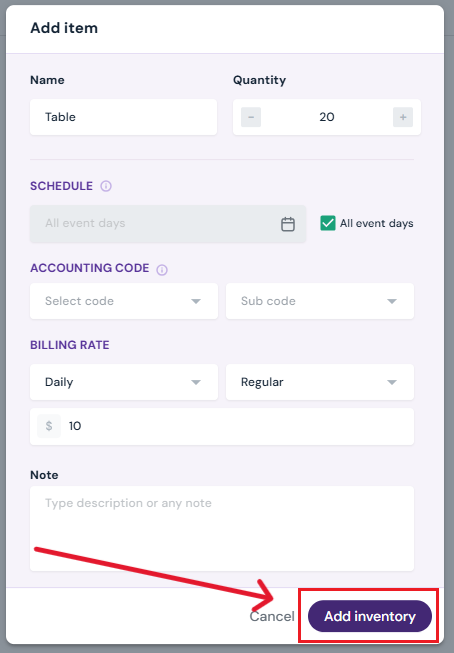
-
-
How to Edit a Quote
-
Click the purple Edit button next to the section you want to modify.
-
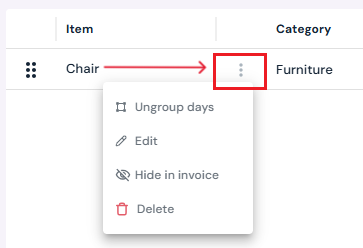
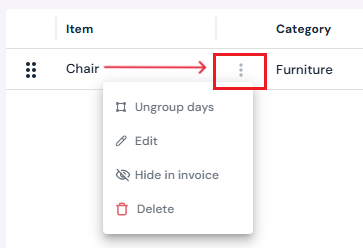
Hover over the item you want to update and click the three-dot menu.
-
Select Edit, make your changes, and click Save at the bottom of the pop-up to apply updates.
How to Hide or Show Items
- If you have entries you don’t want included in the quote or want to save for later, click Hide in Invoice — this will remove the entry from display and total calculations until unhidden.
How to Ungroup Days
-
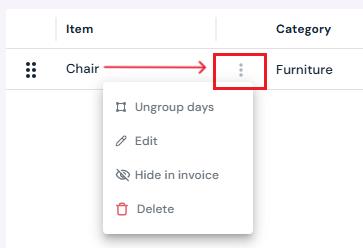
If you’d like items to display separately by day, click Ungroup Days from the three-dot menu.
-
The quote will now show daily breakdowns for each line item.
Note: This action cannot be undone — you’ll need to delete and re-add the item to revert.
How to Delete a Quote or Entry
-
Delete an entry:
-
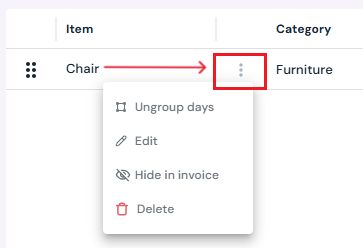
Hover over the row, click the three-dot menu, and select Delete. Confirm by clicking Yes, Delete in the pop-up.
-
-
Delete the entire quote:
-
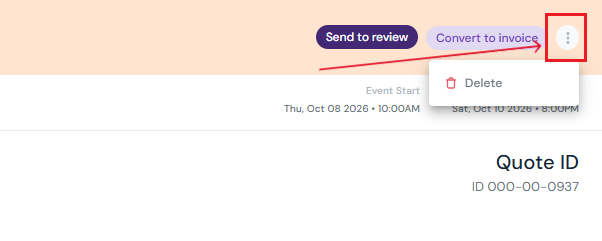
Click the three-dot menu on the top right of the quote viewer bar and select Delete.
-
Note: The quote is always visible to the producer through their portal; however, they cannot approve the quote until you send it for review.