
How to Enable Sales for an Event
1. Set Up During Event Creation
- When creating a new event, make sure to select Collaborative for the event type.
2. Update an Existing Event
- If the event was not initially created as Collaborative, follow these steps to enable the Sales tab:
-
-
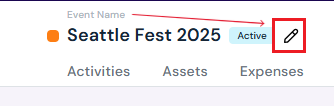
Hover over the event title and click the Edit button.
-
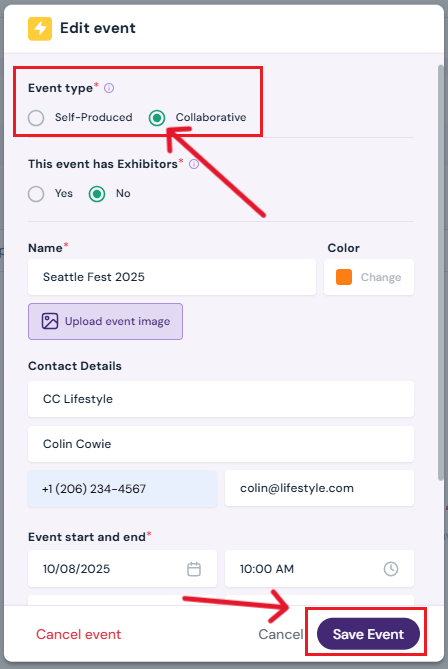
In the pop-up, change the event type to Collaborative.
- Optional: You can add a primary contact for the collaborator/producer. (Clients already added to your venue profile will appear in the dropdown menu. You can also type in a new client and select Create a New Company — this will automatically add the entry to your client list on the venue profile.)
-
Click Save Event.
3. Confirm Sales Tab
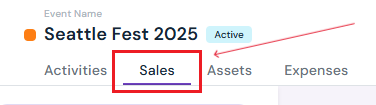
- Once saved, the Sales tab will appear in the Event Details menu.
-
Venue access: You’ll be able to create and manage quotes and invoices directly.
-
Producer access: Producers will see this as a Billing section, where they can approve quotes sent by the venue and review invoices.
-
Note: The Sales feature is only available for collaborative events.
Next Steps
Invite a producer to Sho-Soft for a collaborative event
See how to add a client to the list in your venue profile