
How to Access Clients
-
On the top toolbar, click Clients.

-
The Clients page will open, showing existing client entries in chart form (if any).
Two Ways to Add a Client
1. Through the Pop-Up Window
-
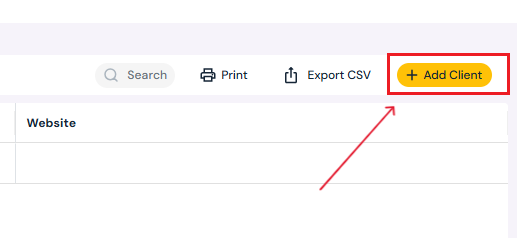
Click the yellow Add Client button (top right corner).
-
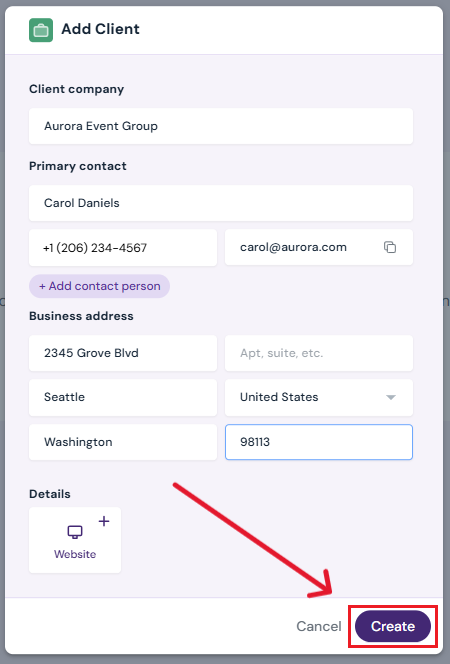
Enter Client Details:
-
Company Name
-
Primary Contact: full name, phone (optional), email (optional)
-
Optional: Click Add Contact Person to include additional contacts.
-
Optional: Business address
-
Optional: Client’s website
-
-
Click Create Client.
-
The new client will appear in the Clients chart.
2. Directly in the Chart
-
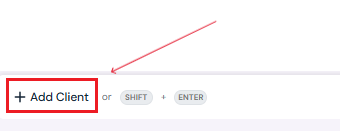
At the bottom of the chart, click Add Client or press Shift + Enter.
-
A blank row will appear:
-
Enter Client Company Name.
-
Enter Primary Contact Details.
-
Optional: Add additional information such as email, phone number or website.
-
-
Click the checkmark ✔ to save, or X to cancel.
Note: To add extra details like address and additional contact person, use method 1 and add clients through the pop-up window.
How to Edit or Delete a Client
-
Hover over the client row you want to update.
-
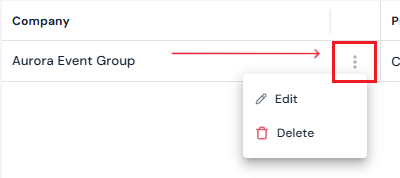
Click the three-dot menu next to the client’s name.
-
Select Edit or Delete.
-
Edit a Client:
-
Update the details in the pop-up.
-
Click Save Changes to confirm.
-
Or click Delete Client to remove the client entirely.
-
-
Delete a Client:
-
Confirm by clicking Yes, Delete in the pop-up.
-
Next Steps
Invite a Client as a producer to a collaborative event on Sho-Soft
Learn about the differences between Self-Produced and Collaborative events