
How to Add Booth Extras
-
-
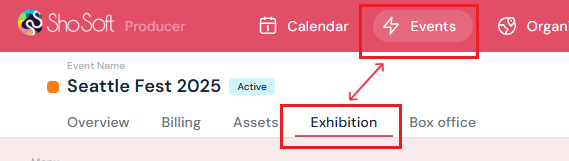
Navigate to the Exhibition section (if you do not see the Exhibitions tab follow the step outlined for adding exhibitions to an event).
-
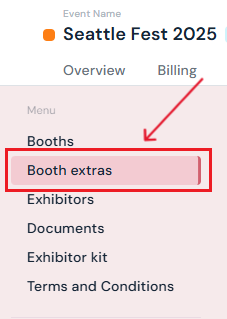
Click on Booths Extras in the side menu.
-
Collaborative Events Only: The Venue determines who is authorized to sell booth extras (either the Venue OR the Producer). If the Venue has granted you permission, proceed with the setup steps below. If not, this feature will not be available to you, and you may skip this article.
-
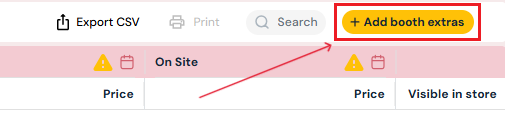
Click the yellow Add Booth Extras button.
-
Choose how to add the item:
-
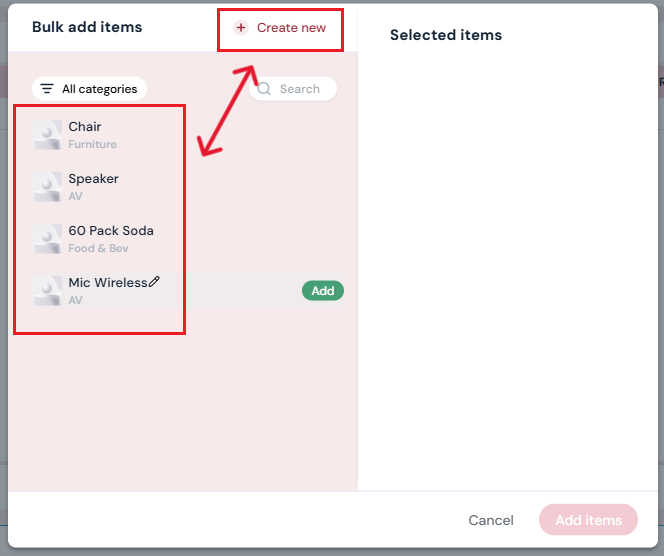
Select from the pre-populated inventory list (based on the Producer's inventory profile. If you want to add a new permanent inventory item to the list see how to add inventory).
-
OR click Create New Item and enter:
-
Name of the item
-
Select a Category (must be added under the Inventory tab first, see how to add a category )
- Optional: Upload an image
-
Click the maroon Create button. The new item will appear at the bottom of the list in the pop-up.
-
-
-
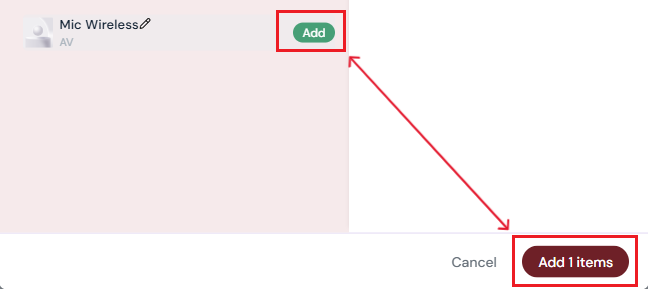
Click the green Add button next to the item you want to list for exhibitors to purchase/reserve.
-
Confirm by clicking the maroon Add Item button at the bottom of the pop-up.
-
The item will appear in the Booth Extras table.
-
Double-click the entry to set pricing:
-
Early Bird (optional)
-
Regular (optional)
-
Onsite (optional)
-
-
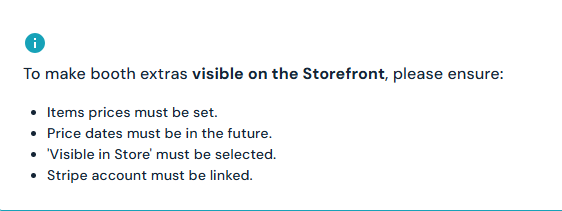
Check the Visible in Store box to make the item available on the storefront.

-
Click ✔ to save or ✖ to discard.
-
At the top of the table (pink bar), enter sale dates for Early Bird, Regular, and Onsite pricing. Note: Dates must be set in the future or the item will not appear in the storefront.

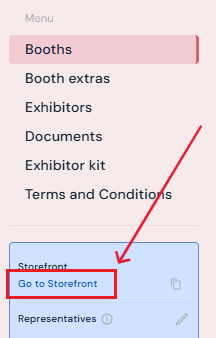
- Click on Go to Storefront in the blue box under the menu on the left hand side to check booth extras listings in the storefront.
How to Edit Booth Extras
-
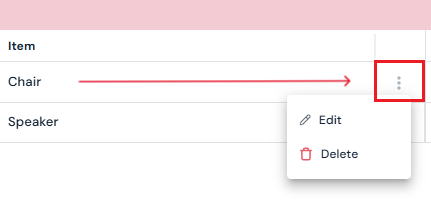
Hover over the booth extra you want to change.
-
Click the three-dot menu.
-
Select Edit.
-
Update details in the pop-up (name, category, or image).
-
Click Confirm to save changes.
How to Delete Booth Extras
-
Hover over the booth extra you want to remove.
-
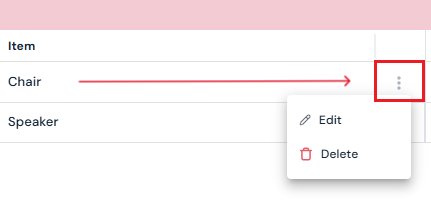
Click the three-dot menu.
-
Select Delete.
-
Confirm by clicking Yes, Delete in the pop-up.
Next Steps
Create/Edit/Delete an exhibitor booth
Assign a booth to an exhibitor
Request documents from exhibitors through Sho-Soft
Build exhibitor kits for all exhibitors to access
Build terms and conditions for exhibitors
Add/Edit/Delete representatives to serve as the primary point of contact for exhibitors