
How to Add Inventory
-
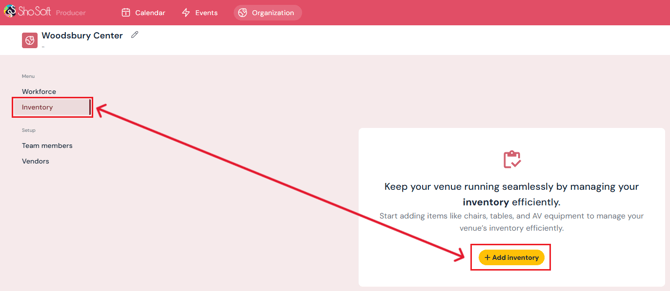
Under the menu on the left-hand side, select Inventory.
-
Click the yellow Add Inventory button.
-
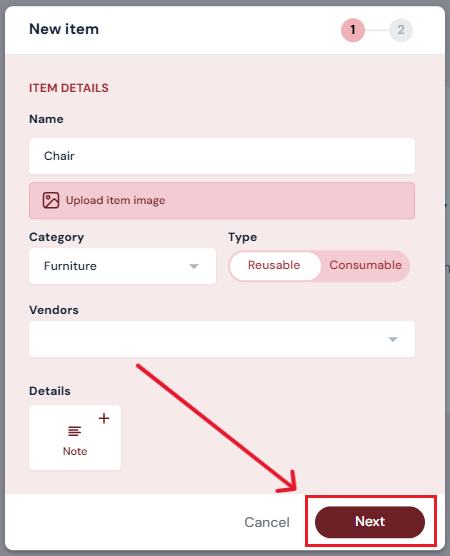
Enter inventory details:
-
Name (e.g., Chair, Projector, Food etc)
-
Optional: Upload an image
-
Select an initial Category (Furniture / AV) – you can edit or add more categories later.
-
Select an Inventory Type: Reusable or Consumable
- Optional: Vendor - select from the drop-down menu. (Only vendors already added under the Vendors tab will appear. See how to Add Vendors to add more.)
-
Optional: Add notes in the Description field
-
-
Click Next.
-
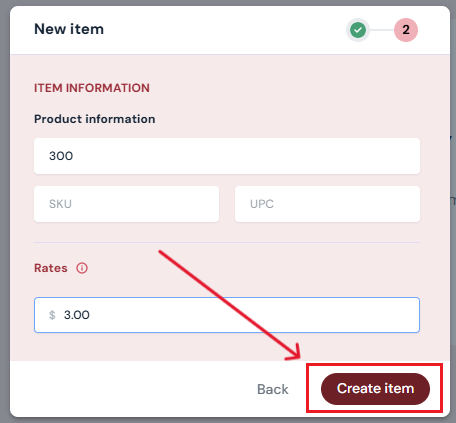
Enter product information:
-
Quantity available
-
Optional: SKU & UPC
-
Rate charged by you/vendor
-
-
Click Create.
Your inventory item will now appear on the Inventory Page.
Next Steps
Continue setup with Invite Team Members
Add/edit/delete inventory anytime on the Inventory page
Add/edit/delete categories for inventory on the Inventory page