
How to Add a Space
- Open Add Space
- Click the Start button next to Add Space on the setup list pop-up (bottom right corner).
-
- Or, click the yellow Add Space button on the page.
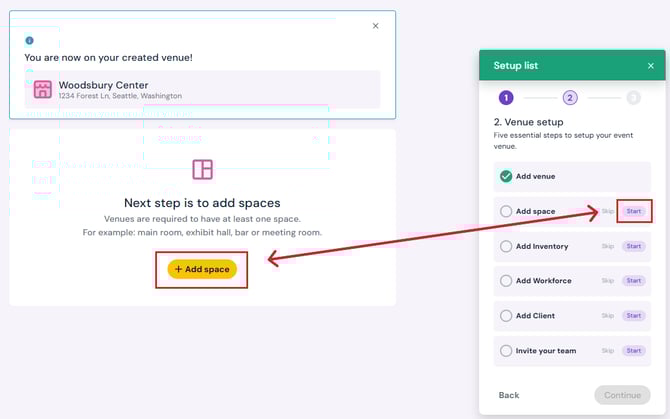
- Or, click the yellow Add Space button on the page.
- Enter Space Details
- Space Name (e.g., Hall A)
-
- Optional: Upload an image
-
- Enter space size and capacity
-
- Optional: Add notes in the Description field
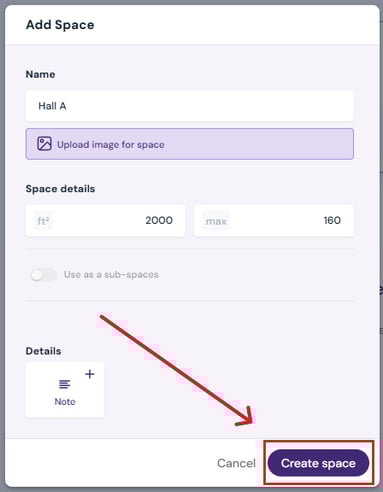
- Optional: Add notes in the Description field
3. Create Space
-
- Click Create Space to save your details.
- Click Create Space to save your details.
Next Steps:
Continue venue setup with Add Inventory.Add/edit/delete spaces in your venue profile.