
How to Add a Client
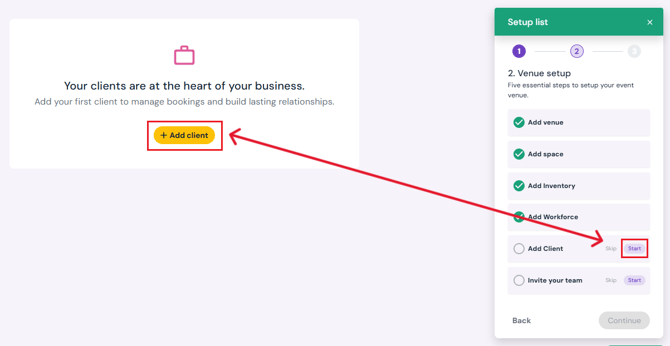
- Click the Start button next to Add Client on the setup list pop-up (bottom right corner).
- Click the yellow Add Client button on the page.
- Enter Client Details:
- Company name
- Primary contact’s full name
- Phone number and email address
- Optional: Click Add Contact Person to include additional contacts.
- Optional: Business address
- Optional: Client’s website
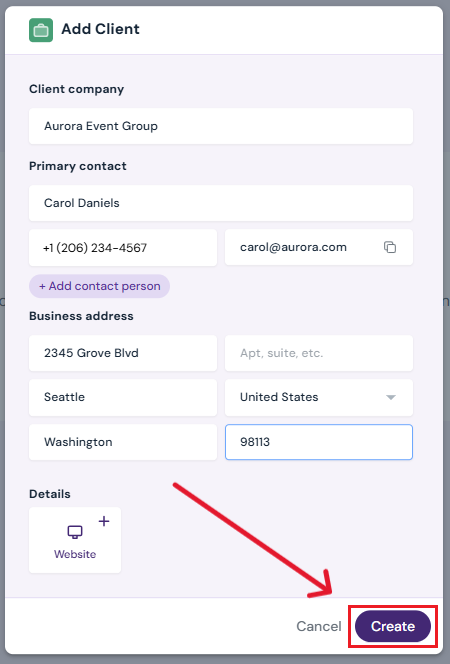
- Create Client
-
- Click Create to save your Client details.
Next Steps
Continue Venue Setup with Invite Your Team
Add/edit/delete clients at any time on the Clients page