
How to Request Documents
-
-
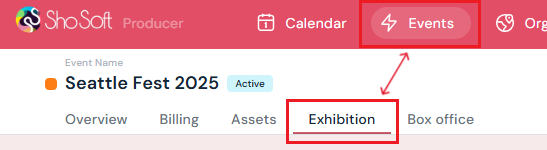
Navigate to the Exhibition section (if you do not see the Exhibitions tab follow the step outlined for adding exhibitions to an event).
-
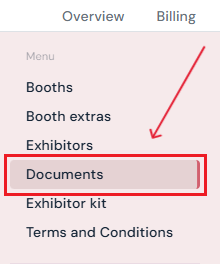
Click Documents in the side menu.
-
-
Create a File Request
-
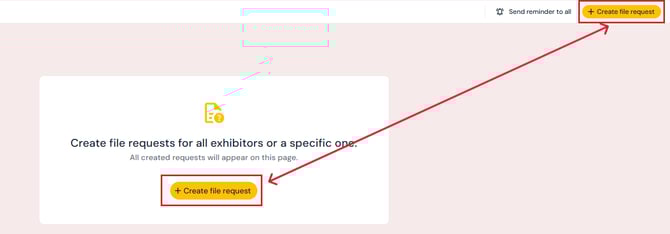
Click the yellow Create File Request button.
-
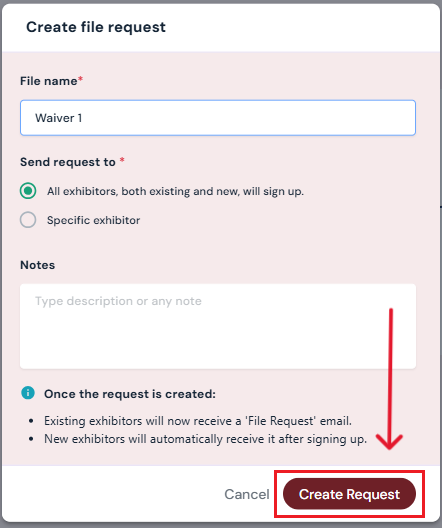
In the pop-up, enter the following details:
-
File Name – The name of the document you’re requesting.
-
Recipients – Select whether to send the request to All Exhibitors or a Specific Exhibitor.
-
Optional: Add any notes or special instructions.
-
-
-
Send the Request
-
Click the maroon Create Request button.
-
The request will be sent to all chosen exhibitors.
-
Sending Reminders
-
To remind exhibitors about outstanding file requests:
-
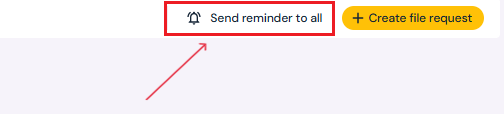
Click Send Reminder to All at the top of the page.
-
In the confirmation pop-up, click Send Reminder.
-
Next Steps
Create/Edit/Delete an exhibitor booth
Assign a booth to an exhibitor
Add/Edit/Delete booth extras for exhibitors
Build exhibitor kits for all exhibitors to access
Build terms and conditions for exhibitors
Add/Edit/Delete representatives to serve as the primary point of contact for exhibitors