
How to Add Team Members
-
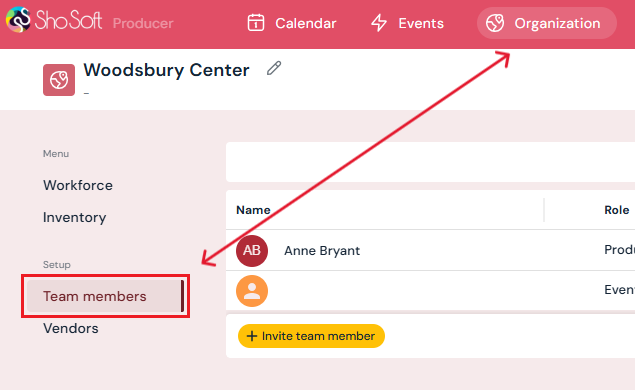
On the top toolbar, click Organization.
-
In the left-hand menu, select Team Members.
-
Your own information will be pre-populated on the page.
-
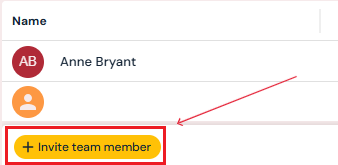
Click the yellow Invite Team Member button.
-
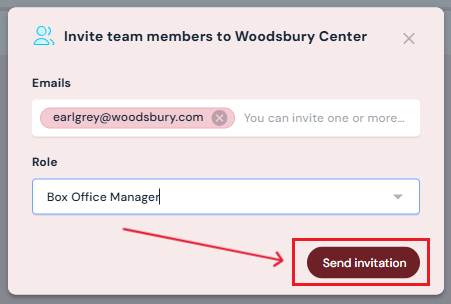
Enter one or more email addresses for your team members.
-
Pick the role for each team member from the dropdown (Producer, Box Office Manager, Event Manager). You can only assign one role per invite group. To invite team members with different roles, please send separate invites.
-
Click Send Invitation.
Your team members will receive an email invitation with steps to create their accounts.
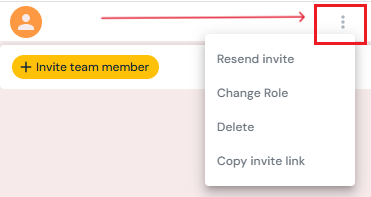
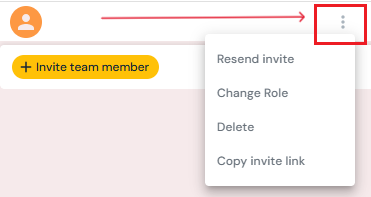
Tip: If a team member doesn’t receive their invite email, copy invite link directly from the three-dot menu and send it to them manually.
How to Edit a Team Member’s Role
-
On the Team Members page, hover over the member you want to update.
-
Click the three-dot menu next to their name.
-
Select Change Role.
-
Pick a new role from the dropdown in the pop-up.
-
Click Change Role to save your changes.
How to Delete a Team Member
-
On the Team Members page, hover over the member you want to remove.
-
Click the three-dot menu next to their name.
-
Select Delete.
-
Confirm by clicking Yes, Delete in the pop-up.
Next Steps
Review team member roles and permissions in Sho-Soft to assign roles and grant permissions appropriately
Find out how invitations work with team member invitations and sign-up
See how to Add/Edit/Delete Workforce for producers
See how to Add/Edit/Delete Vendors for producers
See how to Add/Edit/Delete Inventory for producers