
Note: You can skip this step if the event is Self-Produced. Only complete this step for Collaborative Events.
Convert to Invoice
-
If the quote you created is finalized and doesn’t require client review, click the Convert to Invoice button.


-
The invoice will now appear under the Invoices tab (toggle between Quotes and Invoices to view).
If you need to create a new invoice without a quote, follow the steps below.
1. Open Create Invoice
-
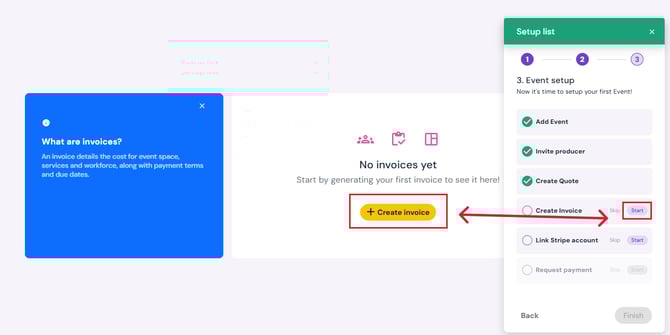
Click the Start button next to Create Invoice on the setup list pop-up (bottom right corner).
-
Or, click the yellow Create Invoice button on the event page.
-
You will be routed to the Invoice Viewer page under the Sales tab.
2. Add Invoice Items
-
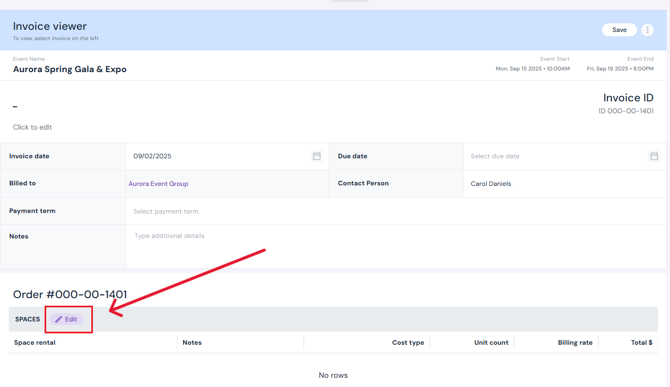
Click the purple Edit button next to Space, Inventory, Workforce or Ad Hoc.
-
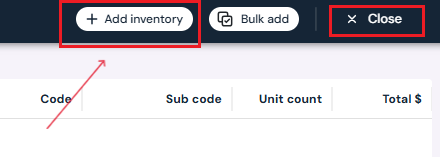
On the next page, click the white Add button at the top.
-
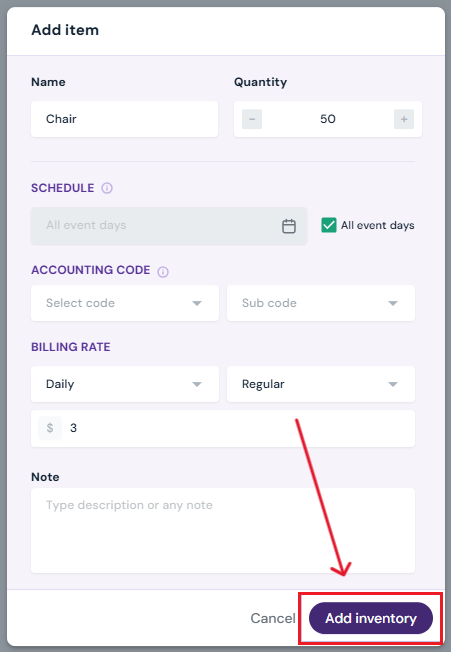
Select the item from the dropdown or type in a new item and fill in the details in the pop-up.
-
Note: Only spaces added under the Venue tab can be selected for invoices (you can always add/ edit spaces under the venue tab) .
-
If an item is missing, revisit the Venue tab to add it before building your invoice.
-
-
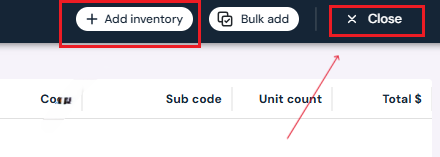
After adding entries, click the Close button next to the Add button to return to the Invoice Viewer page.
3. Review Invoice
-
Once all items are added, check the order total displayed at the bottom of the Invoice Viewer page.
4. Save Invoice
-
Scroll to the top of the Invoice Viewer page.
-
Click the white Save button.

5. Track Invoice
-
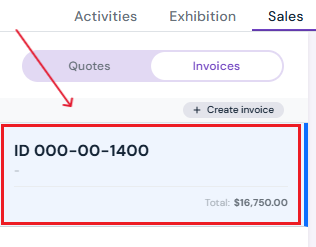
The invoice will now appear under the Invoices tab in the Sales section.
-
You can toggle between Quotes and Invoices to view all billing documents.

Next Steps
Continue event setup with Link Stripe Account