
How to Access Statistics
-
Access the Event's Details Page
-
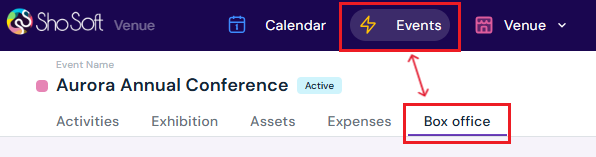
Navigate to the Box Office section (if you do not see the Box Office tab follow the step outlined for adding box office to an event - this feature is for self-produced events only! The box office is managed by the invited producer for collaborative events).
-
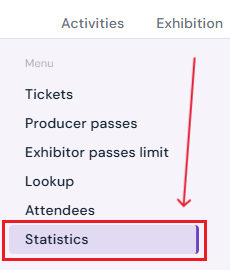
Select Statistics from the side menu.
-
What You’ll See
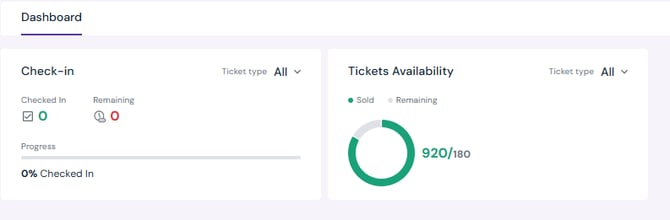
1) Check-in
-
Checked In: Count of attendees successfully scanned/marked as arrived.
-
Remaining: Attendees not yet checked in.
-
Progress bar: Percentage checked in.
-
Ticket type filter (top-right of the card): View totals for All tickets or a single ticket type.
2) Tickets Availability
-
Donut chart showing Sold vs Remaining inventory.
-
Numeric totals update in real time (e.g., 920/180).
-
Ticket type filter (top-right of the card): See availability for All tickets or a specific type.
Next Steps
Create/Edit/Delete tickets in your box office for attendees
Add Promo Codes for event tickets through the box office
Create/Edit/Delete producer staff passes
Create/Edit/Delete producer guest passes
Create/Edit/Delete exhibitor staff pass limits
Create/Edit/Delete exhibitor guest pass limits
Lookup or check-in attendees for an event
View a comprehensive list of attendees for an event
Add/Edit/Delete support contacts to your ticketing store to help answer attendee inquiries