
Exhibitor staff passes are available for events that have exhibitions only. See how to add exhibition to your event if you have exhibitors and need to issue exhibitor passes.
Note: For collaborative events - only the invited producer will be able to set exhibitor staff pass limits.
Method 1: Set Staff Pass Limits During Booth Creation
When creating a booth under the Exhibition tab, you can set exhibitor staff pass limits directly in the booth setup form.
These limits will automatically appear on the Exhibitor Staff Pass Limits page in the Box Office tab once the booth is created.
Method 2: Create Staff Pass Limits from the Box Office Tab
-
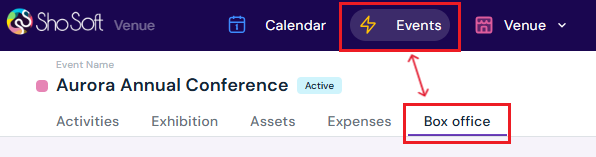
Access the Event's Details Page
Navigate to the Box Office section (if you do not see the Box Office tab follow the step outlined for adding box office to an event - this feature is for self-produced events only! The box office is managed by the invited producer for collaborative events).
-
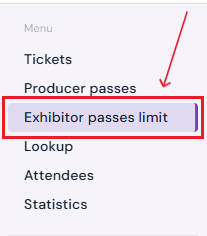
Select Exhibitor Passes Limit from the side menu.
-
Start Exhibitor Staff Pass Limit Setup
-
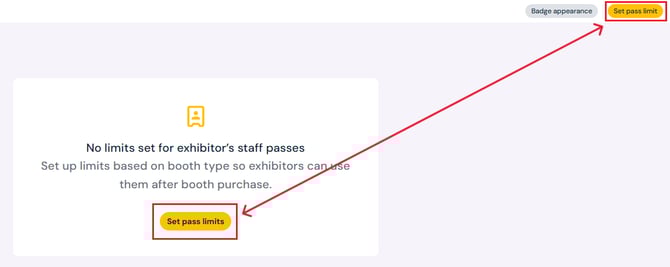
Click the yellow Set Pass Limit button.
-
-
Enter Pass Details
-
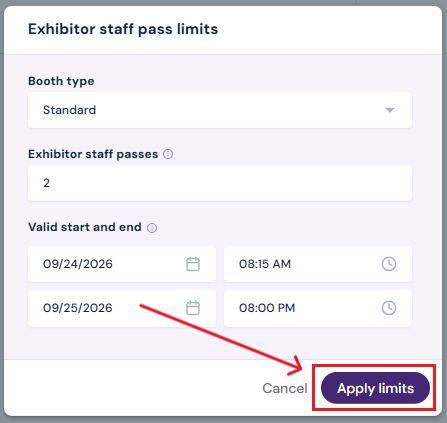
Select Booth Type: Choose the booth type from the dropdown. (Note: The booth must first be created under the Exhibition tab for it to appear here.
-
Staff Pass Limit (Per Booth): Specify the maximum number of passes allowed per booth.
-
Validity Dates & Times: Set the start and end date/time for when the passes will be valid.
-
- Click the purple Apply Limits button to save.
How to Edit Staff Pass Limits
To make changes to existing limits, you’ll need to edit the booth directly under the Exhibition tab. (See Exhibition: Create/Edit/Delete Booth for step-by-step instructions.)
Note: For collaborative events - only the invited producer will be able to set exhibitor staff pass limits.
How to Delete Staff Pass Limits
-
Go to the Exhibitor Staff Pass Limits page in the Box Office tab.
-
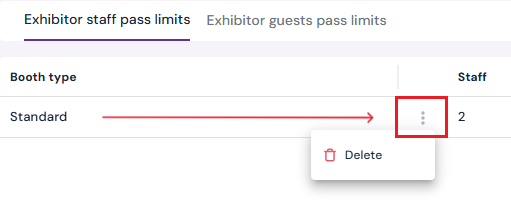
Hover over the entry you want to remove. Click the three-dot menu next to the booth type.
-
Select Delete. The pass limit will be deleted immediately.
Additional Actions

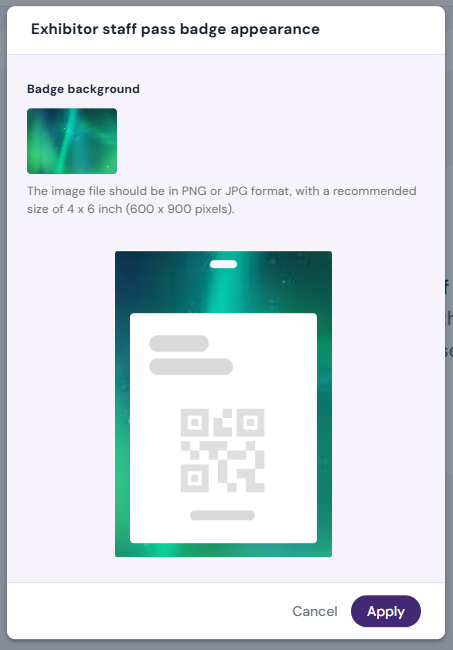
- Customize Badge Appearance: Click Badge Appearance at the top of the page to upload a background image for printed badges.
Next Steps
Create/Edit/Delete tickets in your box office for attendees
Add Promo Codes for event tickets through the box office
Create/Edit/Delete producer staff passes
Create/Edit/Delete producer guest passes
Create/Edit/Delete exhibitor guest pass limits
Lookup or check-in attendees for an event
View a comprehensive list of attendees for an event
Use the box office statistics page to asses event performance
Add/Edit/Delete support contacts to your ticketing store to help answer attendee inquiries