
How to Access Attendee Lookup
-
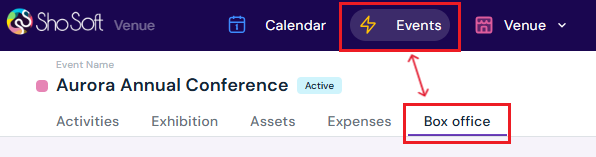
Access the Event's Details Page
-
Navigate to the Box Office section (if you do not see the Box Office tab follow the step outlined for adding box office to an event - this feature is for self-produced events only! The box office is managed by the invited producer for collaborative events).
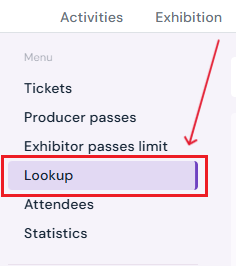
- Select Lookup from the side menu.
-
Search for Attendees
You can locate attendees using one of the following methods:
-
Scan the QR Code on their ticket by clicking the blue QR code button at the right-hand side of the search bar using a QR code scanning device.

Examples of supported devices include:-
Smartphone or tablet with camera and scanning app (e.g., iOS Camera, Android QR Scanner)
-
Handheld USB/Bluetooth QR code scanners
-
Laptop with external or built-in camera and scanning software
-
-
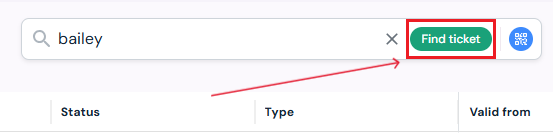
Search by Name or Ticket ID using the search bar.
How to Check In Attendees
-
Search for the attendee by name, ticket number, or by scanning their QR code.
-
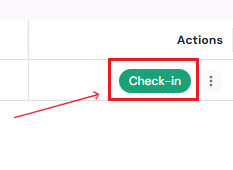
Once the attendee appears in the list, click the Check-In button under the Actions column.
-
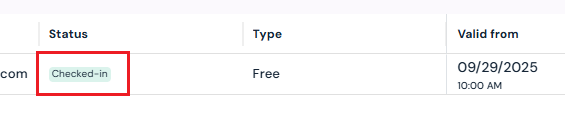
The attendee’s status will update to Checked-In.
-
If the status shows Invalid, it means the ticket is not yet valid for the current date and time (e.g., early arrival).

How to Uncheck Attendees
If you need to undo a check-in (e.g., attendee checked in by mistake):
-
Locate the attendee using search or scan.
-
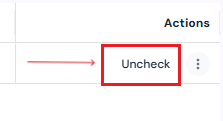
Click the Uncheck button under the Actions column.
-
The status will revert to Open.
Set Up Check-In Hosts
To enable additional team members to assist with check-ins using their own devices:
-
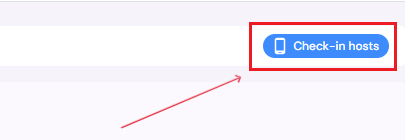
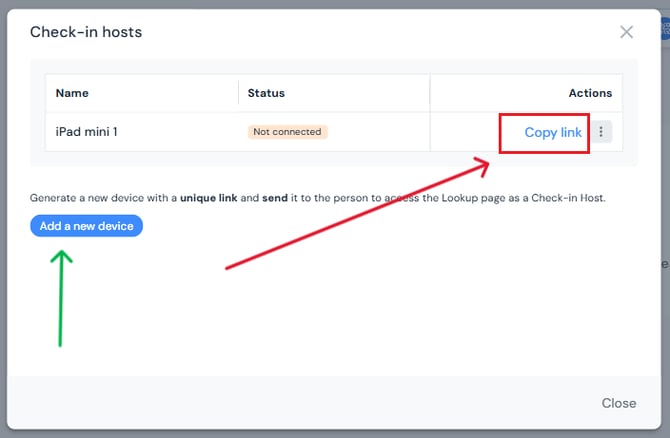
Click the blue Check-In Hosts button.
-
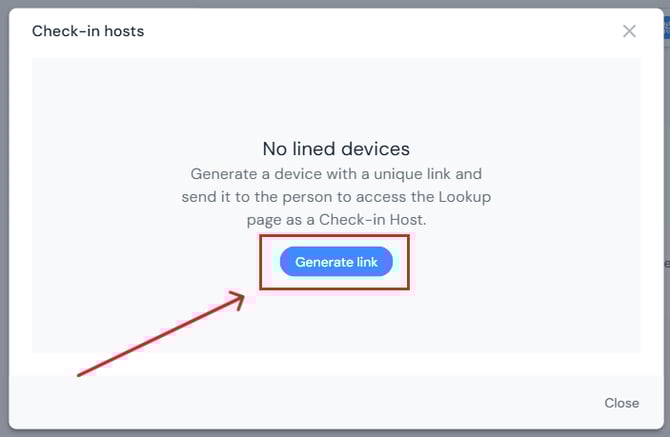
Click Generate Link.
-
Click the Copy Link button and send it to the check-in host via email, SMS, etc.
-
The host can open the link on their device to access a restricted lookup page for scanning and check-in only.
-
You can generate links for multiple devices to support multiple check-in hosts simultaneously.
Manage Check-In Devices
-
Rename a Device - Double-click the device name in the list, type the new name, and press Enter.
-
Delete a Device - Click the three-dot menu next to the device’s Copy Link button, then select Delete Device.
Next Steps
Create/Edit/Delete tickets in your box office for attendees
Add Promo Codes for event tickets through the box office
Create/Edit/Delete producer staff passes
Create/Edit/Delete producer guest passes
Create/Edit/Delete exhibitor staff pass limits
Create/Edit/Delete exhibitor guest pass limits
View a comprehensive list of attendees for an event
Use the box office statistics page to asses event performance
Add/Edit/Delete support contacts to your ticketing store to help answer attendee inquiries