
How to Create a Ticket Type
-
Access the Event's Details Page
-
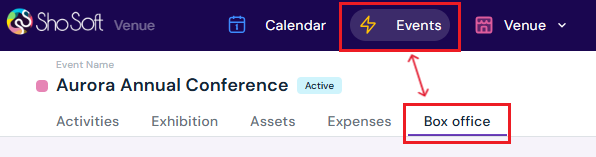
Navigate to the Box Office section (if you do not see the Box Office tab follow the step outlined for adding box office to an event - this feature is for self-produced events only! The box office is managed by the invited producer for collaborative events).
-
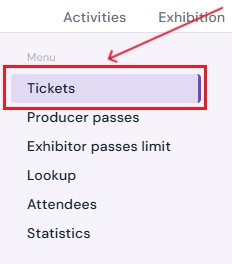
Select Tickets from the side menu.
-
-
Start Ticket Creation
-
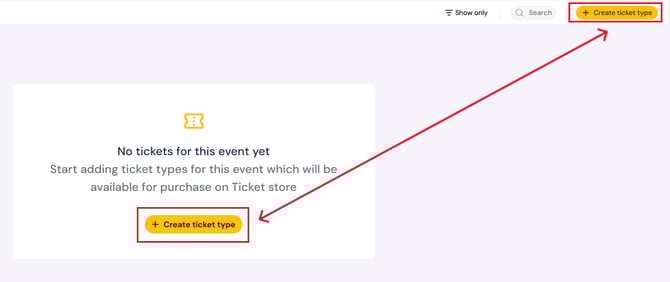
Click the yellow Create Ticket Type button.
-
-
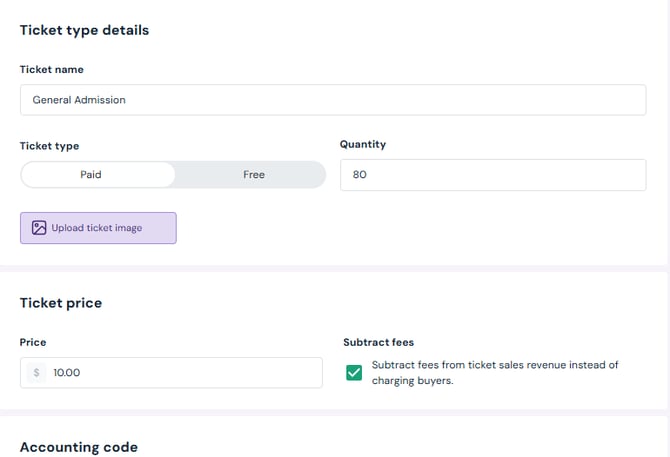
Enter Ticket Details
-
Ticket Name: e.g., General Admission, VIP, etc.
-
Ticket Type: Toggle between Paid or Free.
-
Quantity: Enter the number of tickets available for this type.
-
Optional: Add a ticket image.
-
Ticket Price: Required if Paid is selected.
-
Subtract Fees: Check this box to deduct Stripe processing fees from your ticket revenue instead of charging buyers.
-
Optional: Select Accounting Code if applicable (codes must be set up in the Accounting tab first).
-
Sales Dates & Times: Set when tickets go on sale and when sales end.
-
Validity Dates & Times: Set the dates/times the tickets are valid for attendees.
-
Visible in Store: Check this box to display tickets in the online store.
-
Ticket Limit Per Order: Set a per-order purchase limit if needed.
-
-
Save Ticket
-
Click Save and Exit at the top of the page. The new ticket type will now appear in the chart on the main Tickets tab.

-
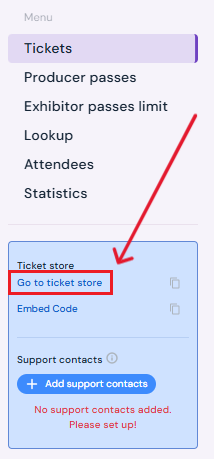
- To preview the storefront, click Go to Storefront in the blue box on the left-hand side of the page.
How to Edit a Ticket Type
-
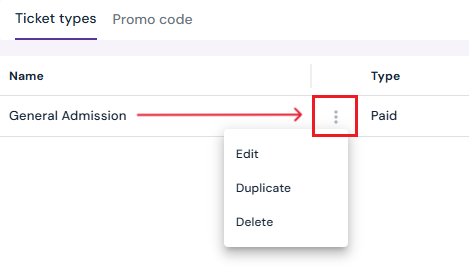
Hover over the ticket you want to edit.
-
Click the three-dot menu and select Edit.
-
Make the desired changes on the Create Ticket Type page.
-
Click Save and Exit to apply your changes.
How to Duplicate a Ticket Type
To speed up setup, you can duplicate an existing ticket type and modify only the necessary fields (e.g., name, quantity, or pricing).
-
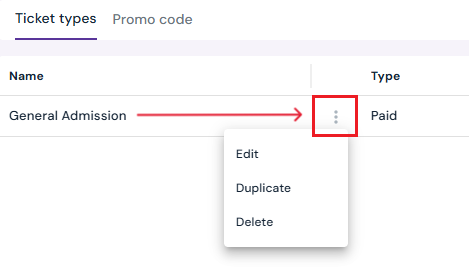
Hover over the ticket entry.
-
Click the three-dot menu and select Duplicate.
-
Make changes as needed, then save.
How to Delete a Ticket Type
-
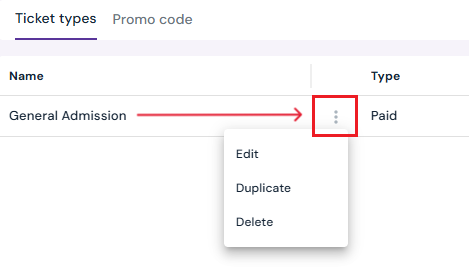
Hover over the ticket entry.
-
Click the three-dot menu and select Delete.
-
Confirm by clicking Yes, Delete in the pop-up.
Next Steps
Add Promo Codes for event tickets through the box office
Create/Edit/Delete producer staff passes
Create/Edit/Delete producer guest passes
Create/Edit/Delete exhibitor staff pass limits
Create/Edit/Delete exhibitor guest pass limits
Lookup or check-in attendees for an event
View a comprehensive list of attendees for an event
Use the box office statistics page to asses event performance
Add/Edit/Delete support contacts to your ticketing store to help answer attendee inquiries