
Add an Event
You can add events in two ways:
Method 1 – Add Event from Calendar Dates
-
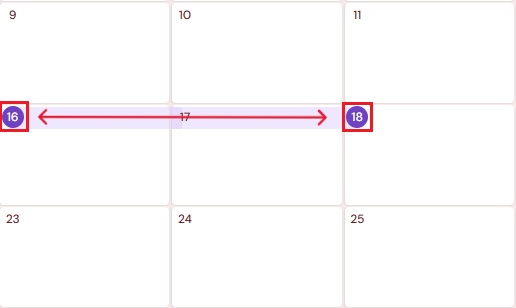
On the calendar, select the start date and then select the end date of the event.
-
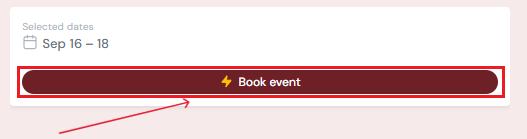
On the right-hand side of the page, click Book Event.
-
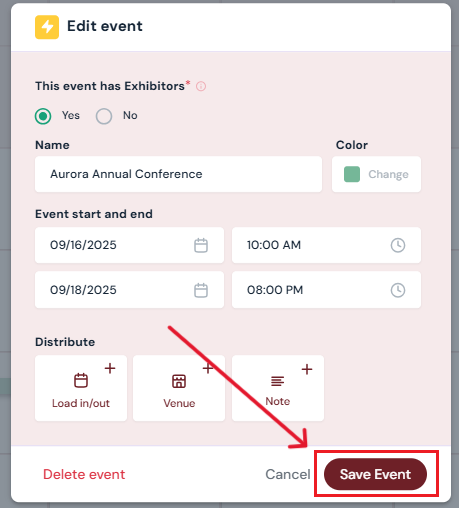
The event creation pop-up will open with the dates already pre-populated.
-
Enter the following details:
-
Exhibitors: Select Yes or No.
-
Event Name: Enter the name of the event (e.g., Aurora Annual Conference).
-
Color: Choose a calendar color to help identify the event.
-
Optional: Add Load in/out dates, assign a Venue, and enter notes.
-
-
Click Save Event to save.
Method 2 – Add Event with Add Event Button
-
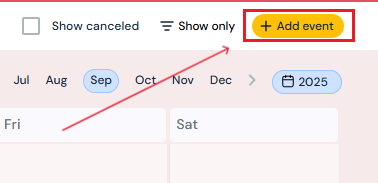
Click the yellow Add Event button at the top of the calendar.
-
In the pop-up, fill in the following:
-
Exhibitors: Select Yes or No.
-
Event Name: Enter the name of the event (e.g., Aurora Annual Conference).
-
Color: Choose a calendar color to help identify the event.
-
Pick the event Start and End Date/Time.
-
Optional: Add Load-In/Load-Out dates, assign a Venue, and enter notes.
-
-
Click Save Event to save.
Edit an Event
-
On the calendar, click the event you want to update.
-
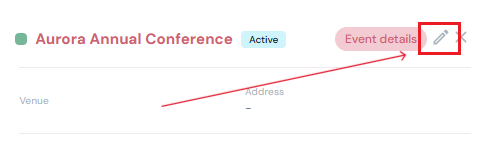
Click the Edit button on the right hand side of the page.
-
Update any event details needed in the pop-up.

-
Click Save Event to confirm changes.
Delete an Event
-
On the calendar, click the event you want to remove.
-
Click the Edit button on the right hand side of the page.
-
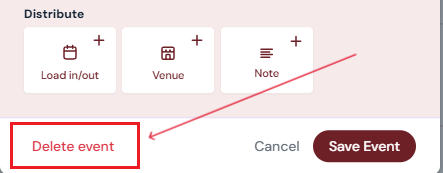
Click Delete Event on the pop-up.
-
Confirm deletion in the pop-up by clicking Yes, Delete.
-
Note: Deleted events are permanently removed from the calendar and cannot be restored.
-
Next Steps
Add Load In/Out Dates to an event
Assign a Venue to an event