
How to Create a Promo Code
-
Access the Event's Details Page
-
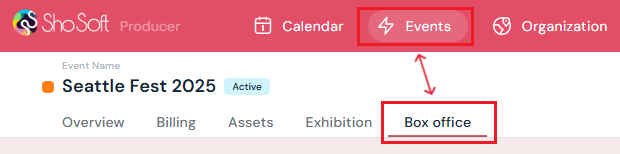
Navigate to the Box Office section.
-
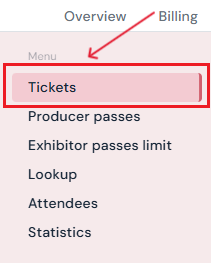
Select Tickets from the side menu.
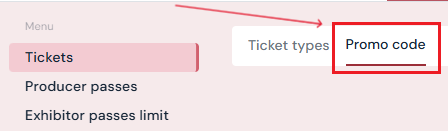
- Select the Promo Code tab
-
-
Start Promo Code Creation
-
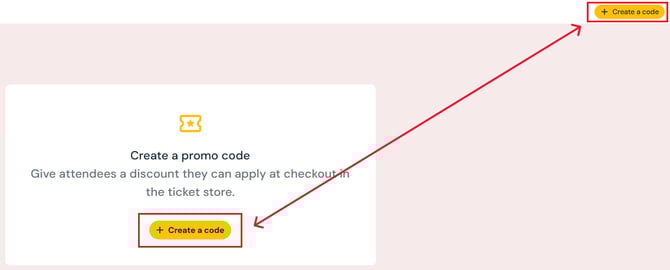
Click the yellow Create a Code button.
-
-
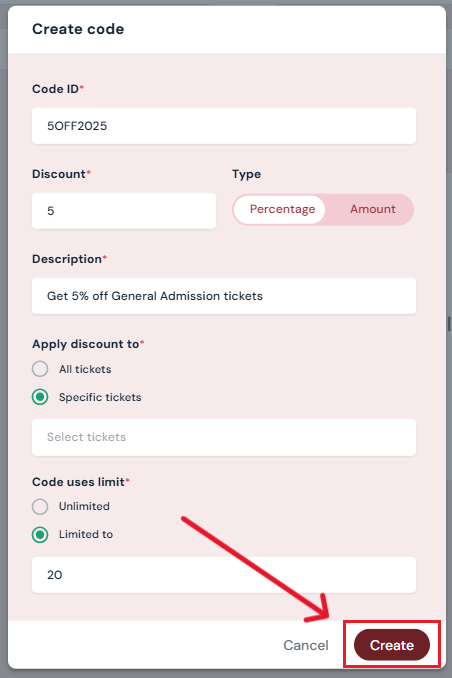
Enter Promo Code Details
-
Code: Type the promo code attendees will use at checkout (e.g., VIP25, FALL10).
-
Discount: Enter the discount amount (e.g., $10 off or 25% off).
-
Type: Choose Amount (fixed discount) or Percentage (percent discount).
-
Description: Add a note to describe the promotion.
-
Apply Discount To:
-
Select All Tickets to apply the discount to every ticket type.
-
Select Specific Tickets and choose ticket types from the dropdown to limit the code.
-
-
Code Uses Limit:
-
Select Unlimited if the code can be used any number of times.
-
Select Limited to and enter the number of uses allowed (e.g., 200 for a 200 use cap).
-
-
Click Create to finalize.
-
The new promo code will appear in the promo code chart
-
How to Edit a Promo Code
-
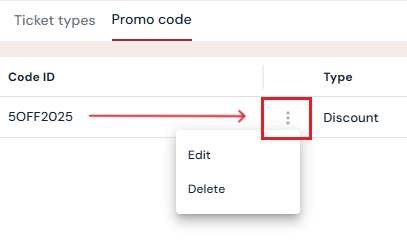
Hover over the promo code you want to edit.
-
Click the three-dot menu and select Edit.
-
Make any changes to the details.
-
Click Save to apply changes.
How to Delete a Promo Code
-
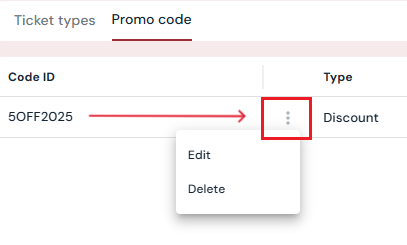
Hover over the promo code you want to delete.
-
Click the three-dot menu and select Delete.
-
Confirm by clicking Yes, Delete in the pop-up.
Next Steps
Create/Edit/Delete tickets in your box office for attendees
Create/Edit/Delete producer staff passes
Create/Edit/Delete producer guest passes
Create/Edit/Delete exhibitor staff pass limits
Create/Edit/Delete exhibitor guest pass limits
Lookup or check-in attendees for an event
View a comprehensive list of attendees for an event
Use the box office statistics page to asses event performance
Add/Edit/Delete support contacts to your ticketing store to help answer attendee inquiries