
How to Create a Producer Guest Pass
-
Access the Event's Details Page
-
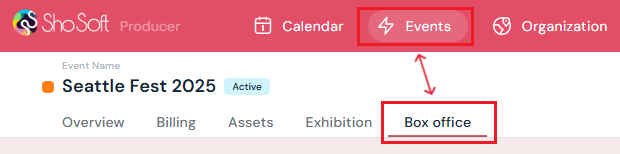
Navigate to the Box Office section.
-
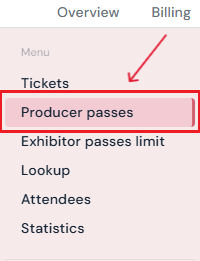
Select Producer Passes from the side menu.
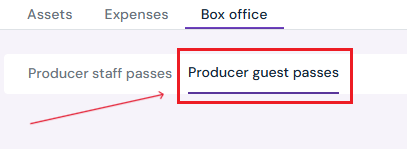
- Go to the Producer Guest Passes tab.
-
-
Start Guest Pass Creation
-
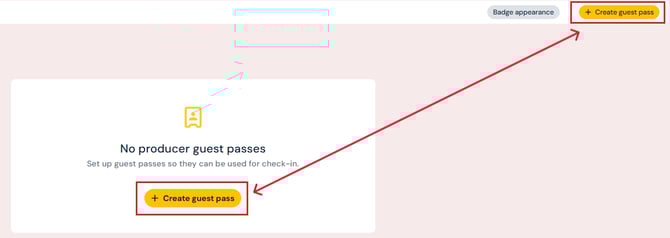
Click the yellow Create Guest Pass button.
-
-
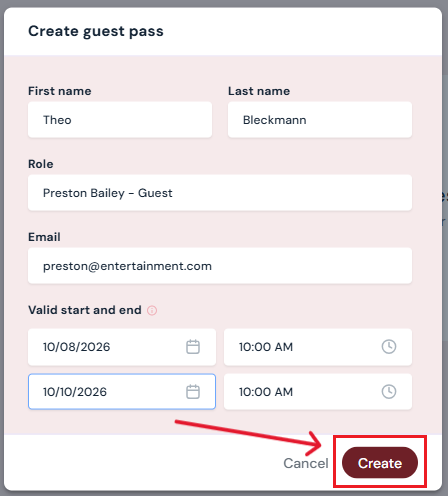
Enter Guest Pass Details
-
First & Last Name of the guest.
-
Role: e.g., Box Office Guest, Event Crew Guest.
-
Email Address: The ticket will be sent here.
-
Validity Dates & Times: Enter the start and end dates/times for when the pass will be active.
-
Click Create to finalize the pass.
-
The new guest pass will appear in the chart on the main Producer Guest Passes page.
-
How to Edit a Guest Pass
-
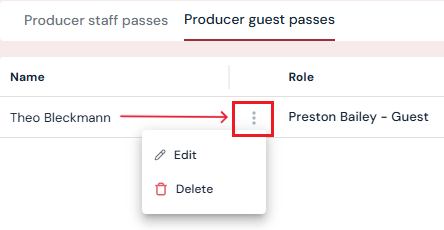
Hover over the row of the pass you want to edit and select Edit.
-
Make the desired changes in the pop-up.
-
Click Save Changes to update.
How to Delete a Guest Pass
-
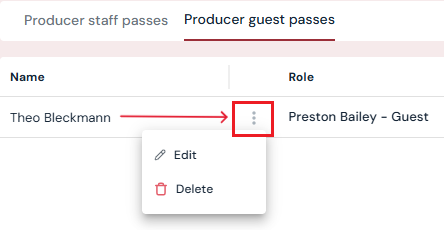
Hover over the row of the pass you want to delete and select Delete.
-
The pass will be removed immediately.
Additional Actions
-
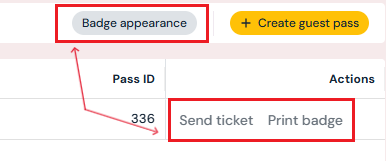
Print Badge: Use the Print Badge option under Actions to generate a printable version.
- Send Ticket: Click Send Ticket under the Actions column to email the pass directly to the staff member.
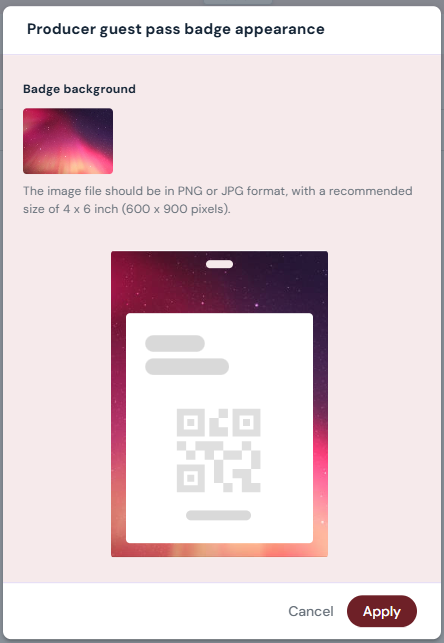
- Customize Badge Appearance: Click Badge Appearance at the top of the page to upload a background image for printed badges.
Next Steps
Create/Edit/Delete tickets in your box office for attendees
Add promo codes for event tickets through the box office
Create/Edit/Delete producer staff passes
Create/Edit/Delete exhibitor staff pass limits
Create/Edit/Delete exhibitor guest pass limits
Lookup or check-in attendees for an event
View a comprehensive list of attendees for an event
Use the box office statistics page to asses event performance
Add/Edit/Delete support contacts to your ticketing store to help answer attendee inquiries