
How to Invite a Producer
-
Confirm Event Type
-
Make sure your event is set as a Collaborative Event during creation.
-
-
Update an Existing Event
-
If the event was not created as a collaborative event, you can edit it to enable the setting:
-
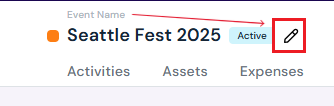
Hover over the event title and click the edit button.
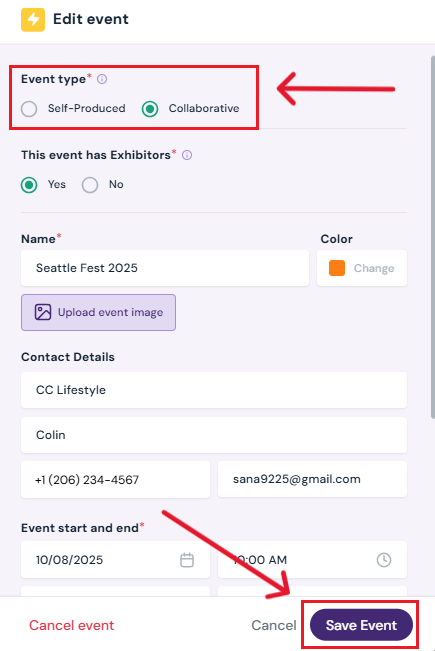
- In the pop-up, select Collaborative for Event Type.
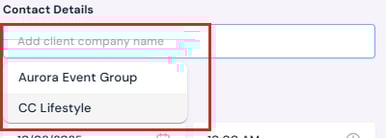
- From the drop down, add an existing client from your Clients list (see how to add clients to your venue profile) OR create a new client directly for the event in the event creation pop-up. (Any new client you create here will be automatically added to your Clients list in Sho-Soft).
OR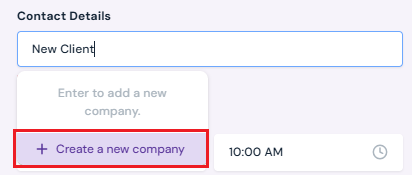
-
Click Save Event.
-
-
Send the Invitation
-
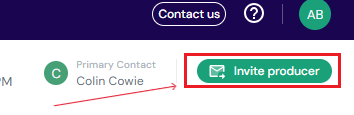
Click the green Invite Producer button (top right corner of the event details page).
-
Confirm the client email address (pre-filled from the client record).
- You can also type in an alternative email or click the link to portal button to send the link manually.
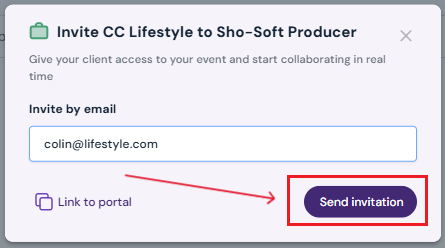
- You can also type in an alternative email or click the link to portal button to send the link manually.
-
Click Send Invitation.
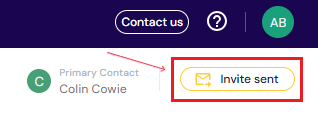
- Invite status will change to Invite Sent (top right corner of the page).
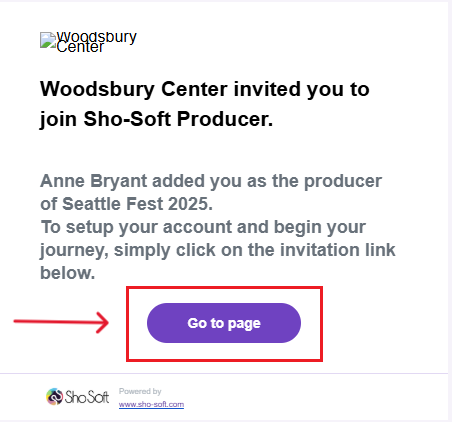
- The email the producer will receive an email with a link as shown in the image below:
-
-
Client Access
-
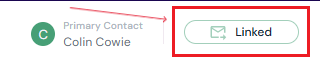
Once accepted, the producer's account will be linked to the event and the invite status will change to Linked (top right corner of the page).
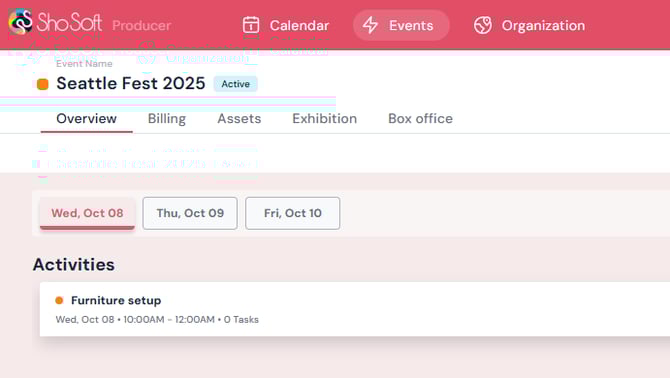
- The producer will now have access to their own producer profile. The following image is a snapshot of an Event Details page in the producer profile linked for a specific event:
-
Next Steps
See how to add/edit/delete daily activities to an event
See how to add/edit/delete tasks to an activity
Add exhibition to an event for managing exhibitors