
How to Add Workforce
-
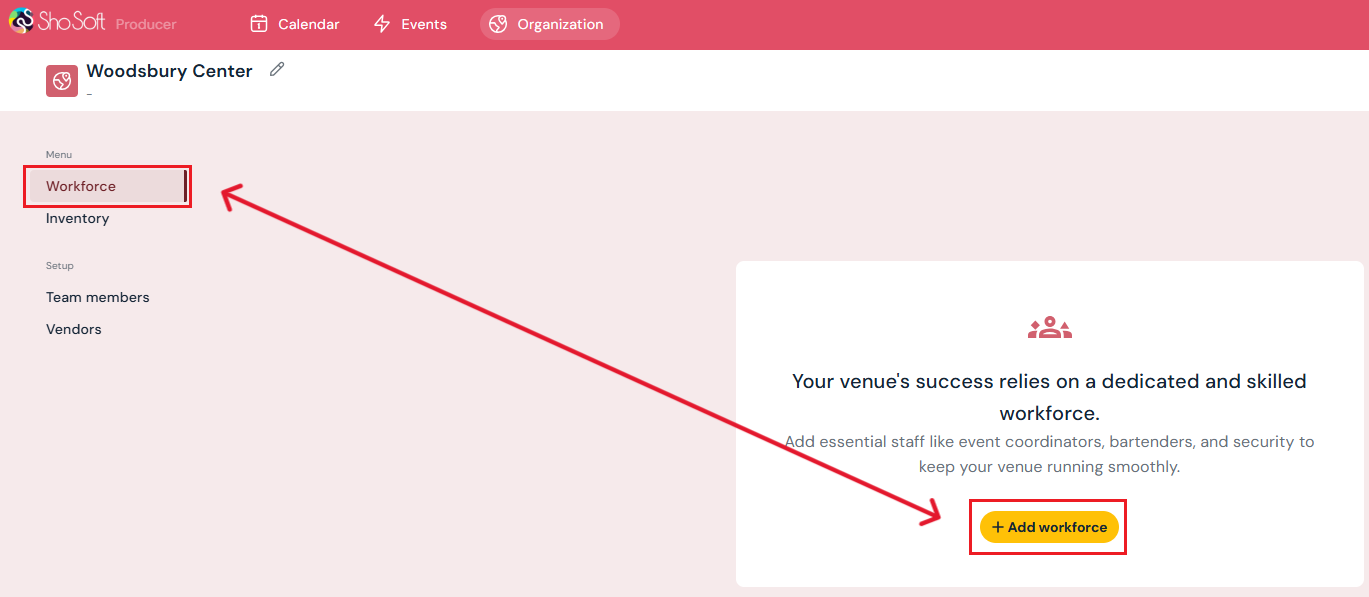
Click the yellow Add Workforce button on the page. You can also find Workforce under the menu on the left-hand side.
-
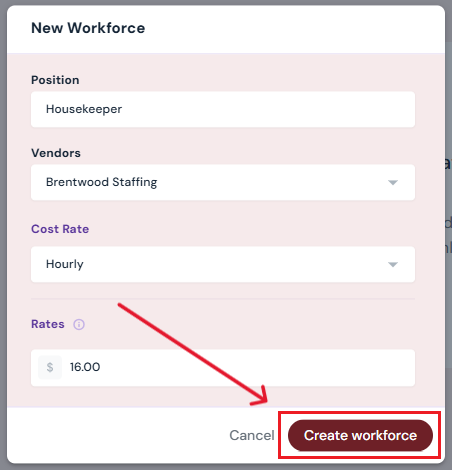
Enter workforce details:
-
Position: select from the drop-down menu, or type in a new position and choose Add a New Position.
-
Optional: Vendor - select from the drop-down menu. (Only vendors already added under the Vendors tab will appear. See how to Add Vendors to add more.)
-
Cost Rate: choose Hourly or Daily.
-
Rate: enter the hourly or daily rate for this workforce position.
-
-
Click the Create Workforce button.
Your workforce member will now be listed on the Workforce page.
Next Steps
Add/edit/delete workforce anytime on the Workforce page
Continue setup with adding Inventory