
How to Add a Category
-
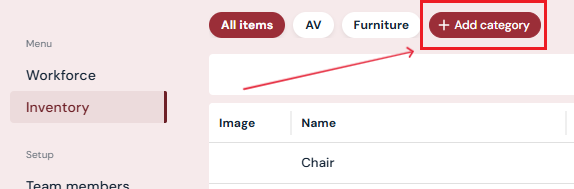
On the Inventory page, click the Add Category button at the right end of the category list.
-
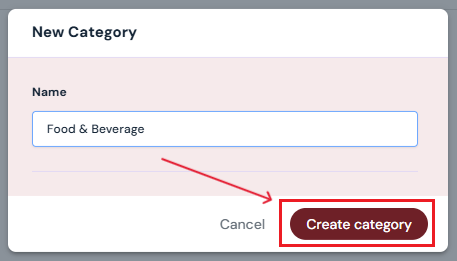
In the pop-up window, type the name of the category.
-
Click Create Category.
-
The new category will appear to the right of all existing categories.
-
You can now assign inventory items to this category.
How to Edit a Category
-
On the Inventory page, click the category you want to edit.
-
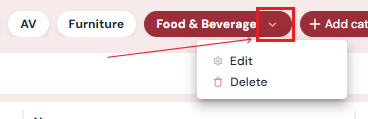
Click the down arrow on the right side of the category name.
-
Select Edit.
-
Update the category name in the pop-up.
-
Click Edit Category to save changes.
Note: Updating a category name will change the label for all inventory items already listed under that category.
How to Delete a Category
-
On the Inventory page, click the category you want to delete.
-
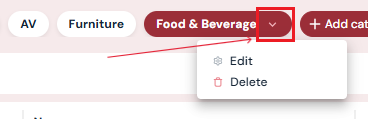
Click the down arrow next to the category name.
-
Select Delete.
-
Confirm by clicking Yes, Delete in the pop-up.
Important: You must delete or reassign all items under a category before you can delete the category itself.
Next Steps
Add/Edit/Delete Inventory to your Producer profile