
How to Add a Document
-
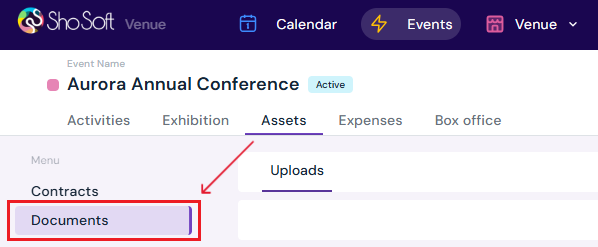
Click the Assets tab.
-
In the left-hand menu, select Documents.
-
Click the yellow Upload File button.

-
Select a document file from your computer.
-
The uploaded file will appear in the Documents page.
How to Edit, Download, or Delete a Document
-
On the Documents page, locate the document file.
-
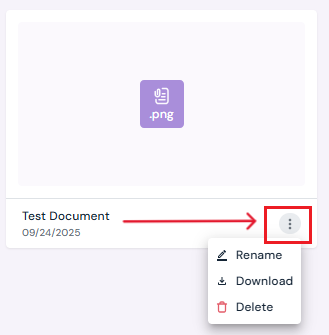
Click the three-dot menu at the bottom of the file entry.
-
Select one of the following actions:
-
Rename – Update file name.
-
Download – Save a copy of the file to your computer.
-
Delete – Permanently remove the file.
-
Next Steps
Upload/Rename/Delete contracts under assets