1. Open Link Stripe Account
-
Click the Link button on the yellow link stripe account banner at the top of the page.
2. Sign In or Create a Stripe Account
-
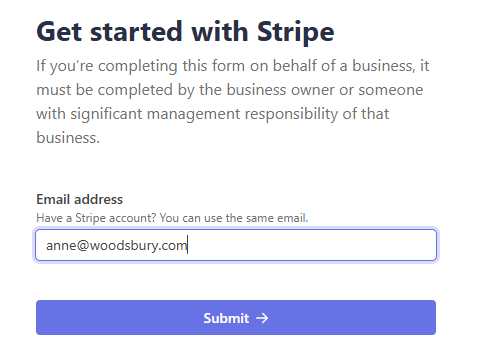
Enter your email address and click Submit.
-
Log in with your email and password, or choose Login with Google.
-
Authenticate using one of the following:
-
Authenticator app (Google, Microsoft, or Authy)
-
Phone number (text message)
-
Security key
-
-
Click Next to continue.
3. Enter Business Information
-
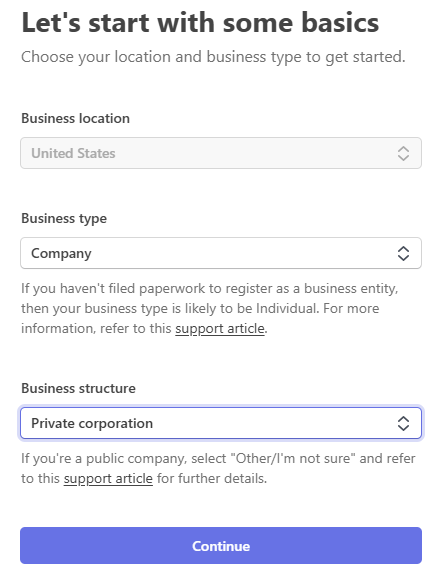
Business Location - select from dropdown.
-
Business Type - select from dropdown.
-
Business Structure - select from dropdown (if applicable).
-
Click Continue.
4. Provide Business Details
-
Legal business name
-
Optional: DBA (Doing Business As)
-
EIN (Employer Identification Number)
-
Business address
-
Phone number
-
Industry
-
Business website
-
Product description (e.g., ticket sales, venue rentals, event services)
-
Click Continue.
5. Enter Personal Information
-
Legal name
-
Email address
-
Job title
-
Date of birth
-
Home address
-
Phone number
-
SSN
-
Check the box if you own more than 25% of the company.
-
Click Continue.
6. Connect Your Bank Account
-
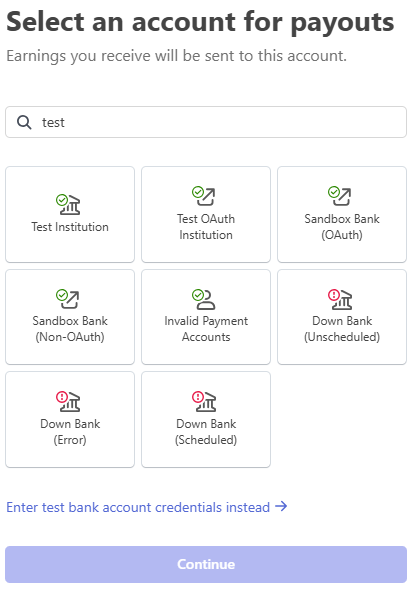
Search for your banking institution and select.
-
In the pop-up, click Agree and Continue.
-
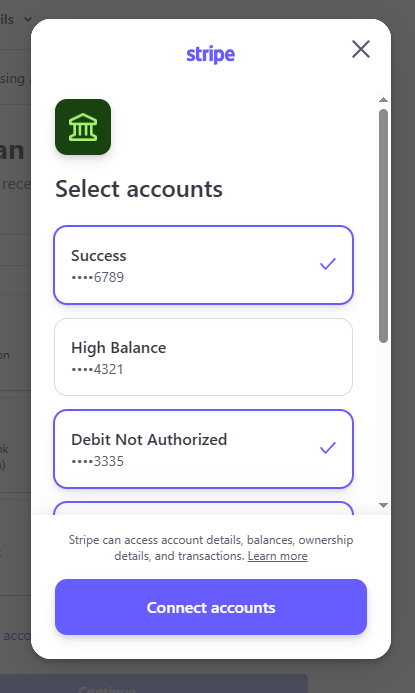
Select the bank accounts you want to connect.
-
Click Connect Accounts.
-
Click Done.
7. Configure Payouts
-
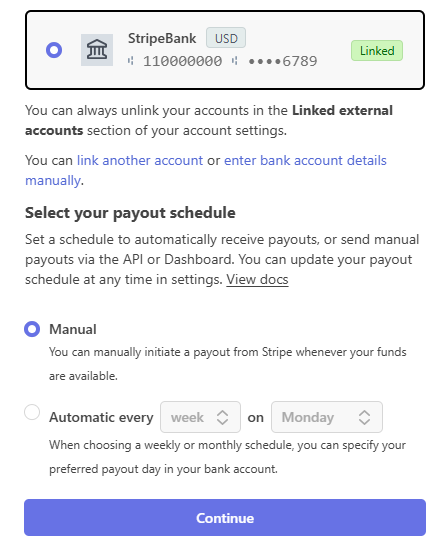
Select the account where you want to receive payouts.
-
Choose your payout schedule: Manual or Automatic.
-
Click Continue.
8. Verify Public Information
-
Review details on the Public Information page.
-
Make any necessary changes.
-
Click Continue.
9. Climate Commitment (Optional)
-
Choose a percentage to allocate toward climate initiatives, or click No Thanks.
10. Review & Submit
-
Edit and complete any missing sections on the Review and Submit page.
-
Click Agree and Submit.
You will be routed back to Sho-Soft and see a notification at the top of the page confirming your Stripe account is under review. Note: Please log back into stripe and add any additional verification details necessary if the account does not connect right away. Stripe might require you to add details and upload documents. The notification message and the Visit Stripe button will appear on the top of the page and will look like the following image:

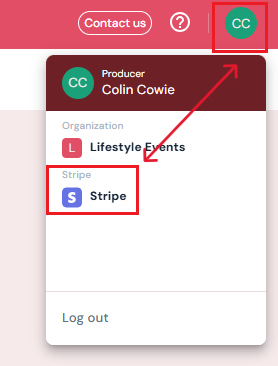
Note: You can access your stripe account at any time through your profile settings. Click on your initials at the top right hand side of the page and select Stripe.