How to Add an Expense
Method 1 – Using the Pop-Up
-
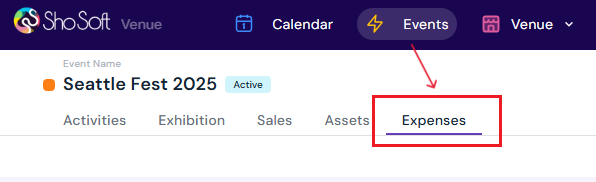
Select the Expenses tab.
-
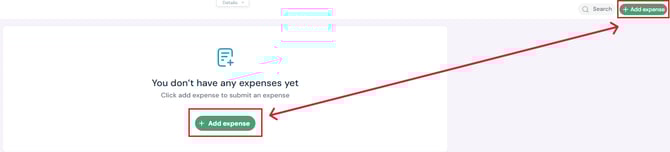
Click the green Add Expense button.
-
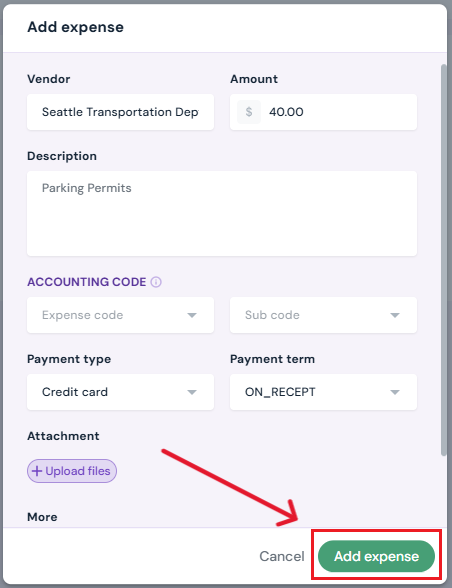
In the pop-up, enter:
-
Vendor Name
-
Amount of Expense
-
Description
-
Optional: Accounting Code (must be created in the Accounting tab first)
-
Payment Type and Payment Term
-
Optional: Upload files or add notes
-
-
Click the green Add Expense button to complete.
-
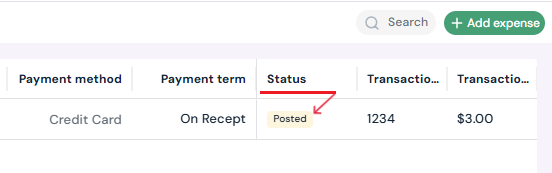
The new expense will appear in the Expenses table with a status (see list of possible statuses below).
Method 2 – Directly in the Table
-
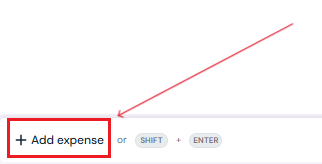
At the bottom of the Expenses page, click Add Expense or use keyboard shortcut Shift + Enter.
-
A blank row will appear in the table.
-
Enter the expense details directly in the row.
-
Click the ✔ to save or ✖ to discard.
How to Edit an Expense
-
On the Expenses page, locate the entry.
-
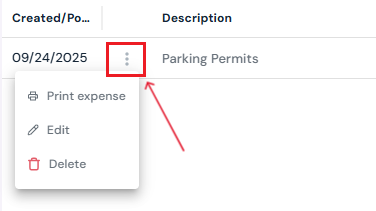
Click the three-dot menu next to the expense date or double click on the row you want to edit.
-
Update any fields as needed.
-
Click Edit Expense to save changes in the pop-up or the ✔ to save or ✖ to discard on the right-hand side of the row.
How to Delete or Print an Expense
-
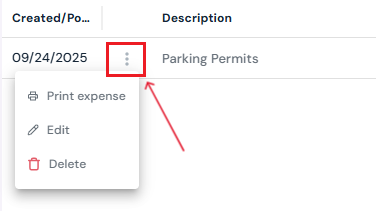
On the Expenses page, click the three-dot menu next to the entry.
-
Select one of the following actions:
-
Print – Generate a printable version of the expense entry.
-
Delete – Permanently remove the entry. (Note: Posted or Voided expenses cannot be deleted.)
-
Expense Statuses
-
Pending – Waiting for Accounting review.
-
Approved – Expense reviewed and accepted.
-
Declined – Expense rejected by Accounting.
-
Posted – Expense approved and recorded in financials.
-
Voided – Expense canceled after being recorded.