
Note: You can skip this step if the event is Self-Produced. Only complete this step for Collaborative Events.
1. Open Request Payment
-
Click the Start button next to Request Payment on the setup list pop-up (bottom right corner).
-
Or, click Request Payment from the Invoice Viewer page.

2. Enter Payment Details
-
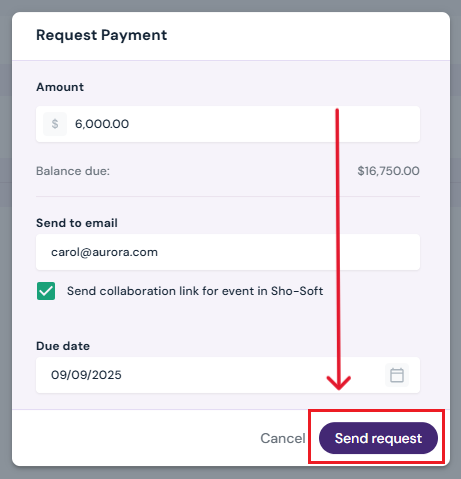
Amount Requested - enter either the full balance or a partial amount.
-
Client’s Email Address - confirm the recipient’s email.
-
Optional: Check the box to send a collaboration link for the event.
-
Due Date - select the date by which payment is required.
3. Send Payment Request
-
Click the Send Request button to finalize.
-
The client will receive an email with payment instructions via Stripe.
4. Complete Event Setup
-
Return to the event setup pop-up.
-
Click Finish, then Done.
Congratulations! You have completed all preliminary steps required for venue and event setup in Sho-Soft.